Manage Your Account
The Personal Settings screen provides a centralized place to make changes to your BigPanda account and reset your password. To access Personal Settings, navigate to the top right of the BigPanda screen, click your name, and then click Personal Settings.
On the Personal Settings page, you can update your full name, change your avatar, reset your password, and update your date and time settings.
Manage Your Account in the single-pane console
In AI Detection and Response (ADR), the Personal Settings screen provides a centralized place to make changes to your account and reset your password. To access Personal Settings, navigate to the top right of the screen, click your name, and then click Personal Settings.
On the Personal Settings page, you can update your full name, change your avatar, reset your password, and update your date and time settings.
Name and Image
On the Personal Settings page, you can change your full name as it appears in BigPanda. To do this, enter your changes into the Name field and click Save.
The image associated with your BigPanda profile can also be updated. On the Personal Settings page, click the Refresh icon. This opens gravatar.com, where you can update your profile image. Changes to your Gravatar image affect all Gravatar-enabled sites where you use the same email address as in BigPanda.
Passwords
You can update your password at any time from the Personal Settings page in BigPanda.
Password Requirements
To provide additional security for your account, BigPanda requires your password to meet these minimum requirements:
Minimum length of 8 characters.
At least one uppercase and one lowercase letter.
At least one number (0 – 9) or one of the following special characters:
! @ $ % & ?
Password best practice
In addition to these requirements, follow your organization's guidelines for password length, use of upper or lower case letters, numbers, and special characters. Consider changing your password every 90 days for increased security.
Change Your Password
To change your BigPanda password:
In the top right, click your name, then click Personal Settings.
Click the Change Password link.
Enter your current password and then a new password that meets the minimum password requirements.
Click Done to reset the password.
Reset Your Password
If you have forgotten your BigPanda account password or if your password does not work, you can request a password reset.
Go to a.bigpanda.io/login
Click the Forgot password link.
Enter your account email address, and click Send Reset Link.
When you receive a confirmation email from BigPanda, click the password reset link and follow the on-screen instructions to create a new password that meets the minimum password requirements.
Date and Time
Opt-in feature
Not all organizations have this feature available, as it is an opt-in service. If you are interested in enabling this functionality, contact your BigPanda account team.
Time zone and date formatting can be adjusted on the BigPanda Personal Settings page. These settings only apply to your account.
To change your time zone, click the Time Zone drop-down menu. Select your time zone from the list.
To adjust your date and time formatting, click the Formatting drop-down menu. Select the appropriate format from the list. The following options are available:
12 hours time (Example: 1:30 PM)
24 hours time (Example: 13:30)
Date and time customization
Date and time customization settings currently do not apply to the Audit Log and Unified Search screens.
Manage Your Account in the AI Incident Assistant and Prevention Web App
In the web app, navigate to the bottom-right corner and click your name to manage your personal settings.
Profile & Preferences
On the Profile & Preferences page, you can manage personal information and preferences to ensure AI Incident Assistant is tailored to your needs.
To access this page, go to the bottom left corner of the screen and click your name. The Profile & Preferences option appears in the menu.
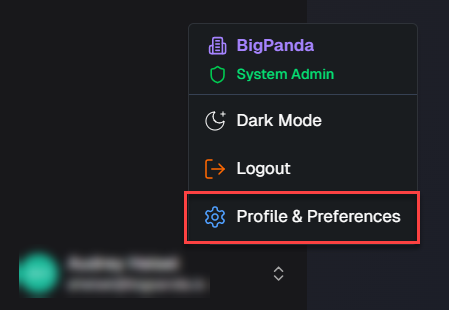
The following information and preferences can be viewed and managed on this page:
Basic Information
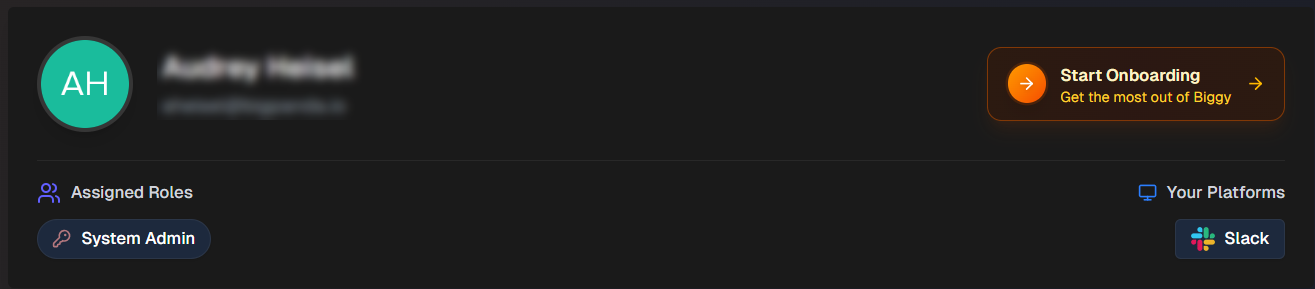
The top section of the page shows your basic profile information. This section displays your name, email address, assigned roles, and the chat platforms you use. You can access the Biggy onboarding module by clicking the Start Onboarding button in the top right of this section.
Your Biggy Usage
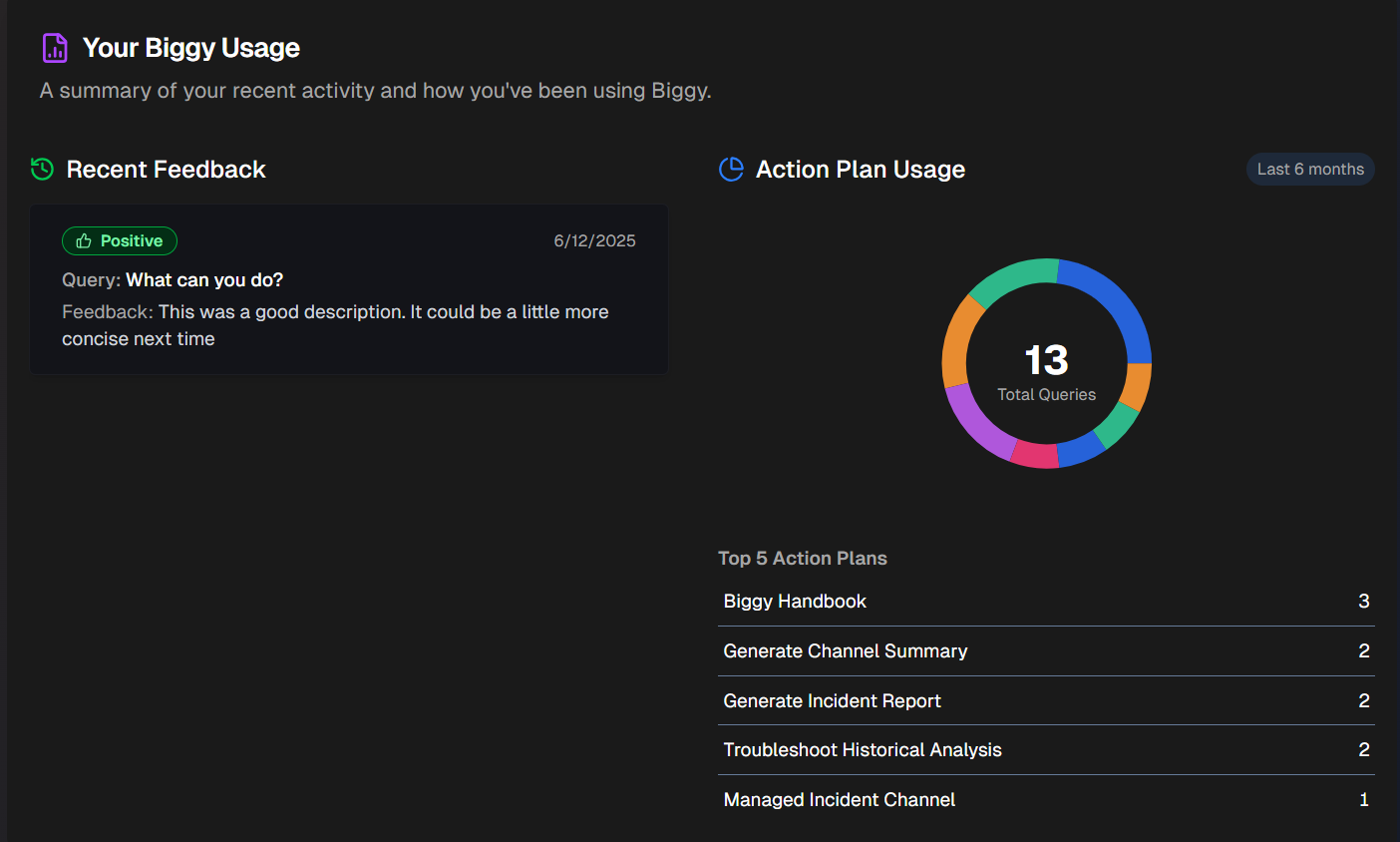
The Your Biggy Usage section displays a summary of your recent activity and how you've been using Biggy. Use this section to view recent feedback you have given Biggy, and information about your action plan usage.
Personalization
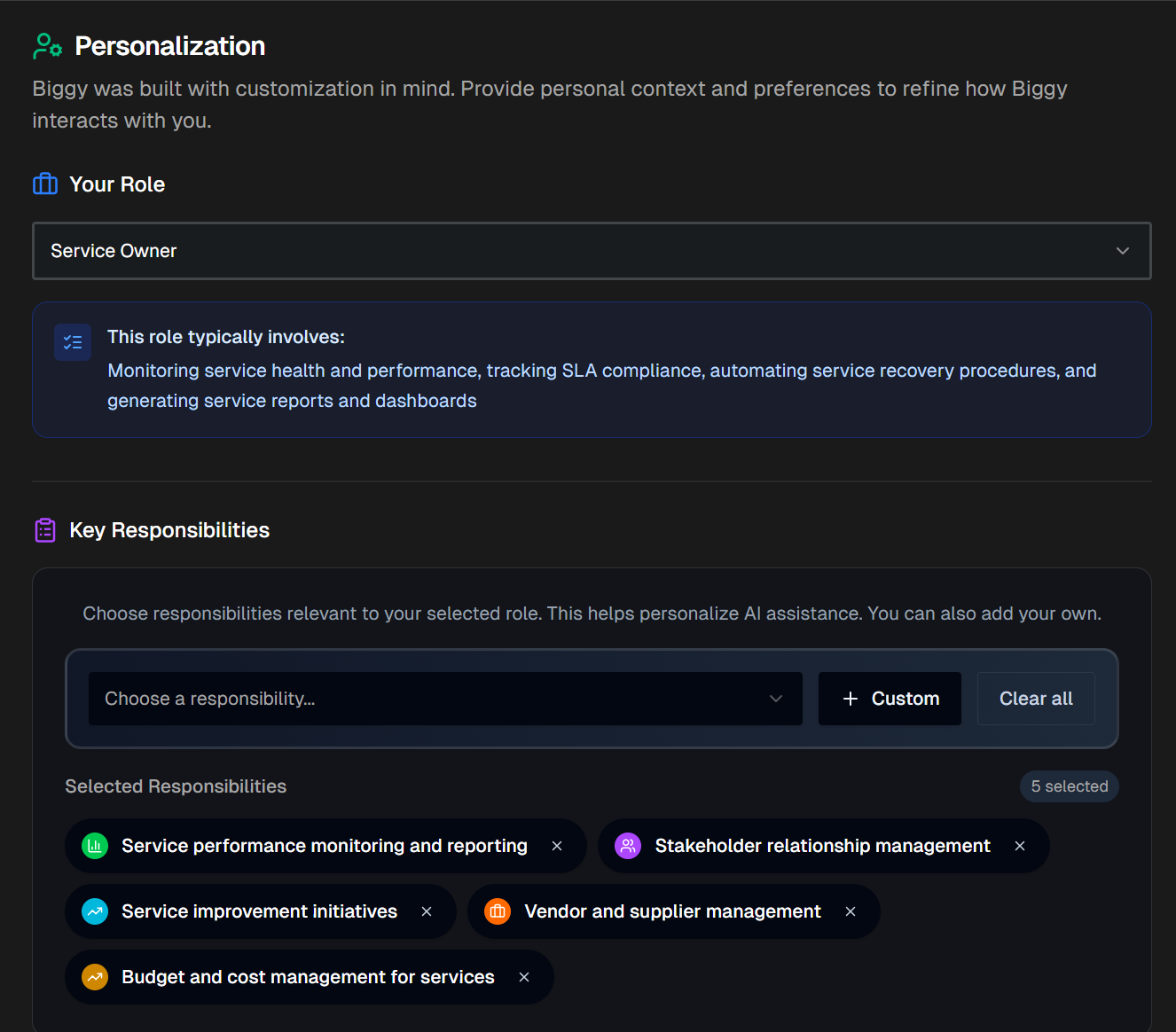
In the Personalization section, give Biggy context and preferences to refine how it interacts with you. If you completed the Guided Onboarding, the information you provided there will be populated in this section.
In the Your Role field, select the IT role that most closely matches your job description.
In the Key Responsibilities field, select your responsibilities from the drop-down menu, or click Custom to add a custom responsibility.
AI Experience Preferences
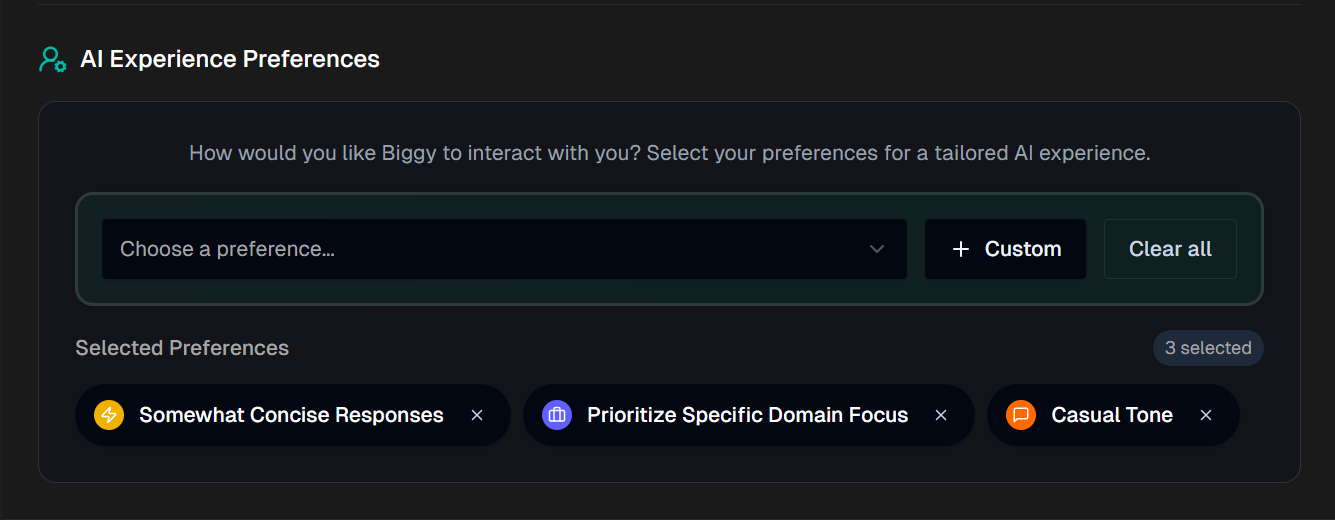
Use the AI Experiences Preferences section to configure how you would like Biggy to interact with you. You can choose from one or more pre-configured style preferences or click Custom to create your own.
The following style preferences are available:
Somewhat concise responses - short and to the point.
Ultra concise responses - extremely concise and to the point. Biggy will never repeat itself, and will communicate all results in as few words as possible.
Actionable insights focus - actionable insights and clear next steps are always included.
Detailed explanations - detailed and comprehensive, with all relevant context or information included.
Assume technical expertise - assumes that the user has advanced technical knowledge and skips basic explanations.
Prioritize specific domain focus - framed through an operational domain focus (for example, networking or security).
Formal tone - uses a formal, professional language and communication style.
Casual tone - uses a relaxed, friendly tone.
Dark Mode and Light Mode
You can change the default theme of the Web App to Dark Mode or Light Mode.
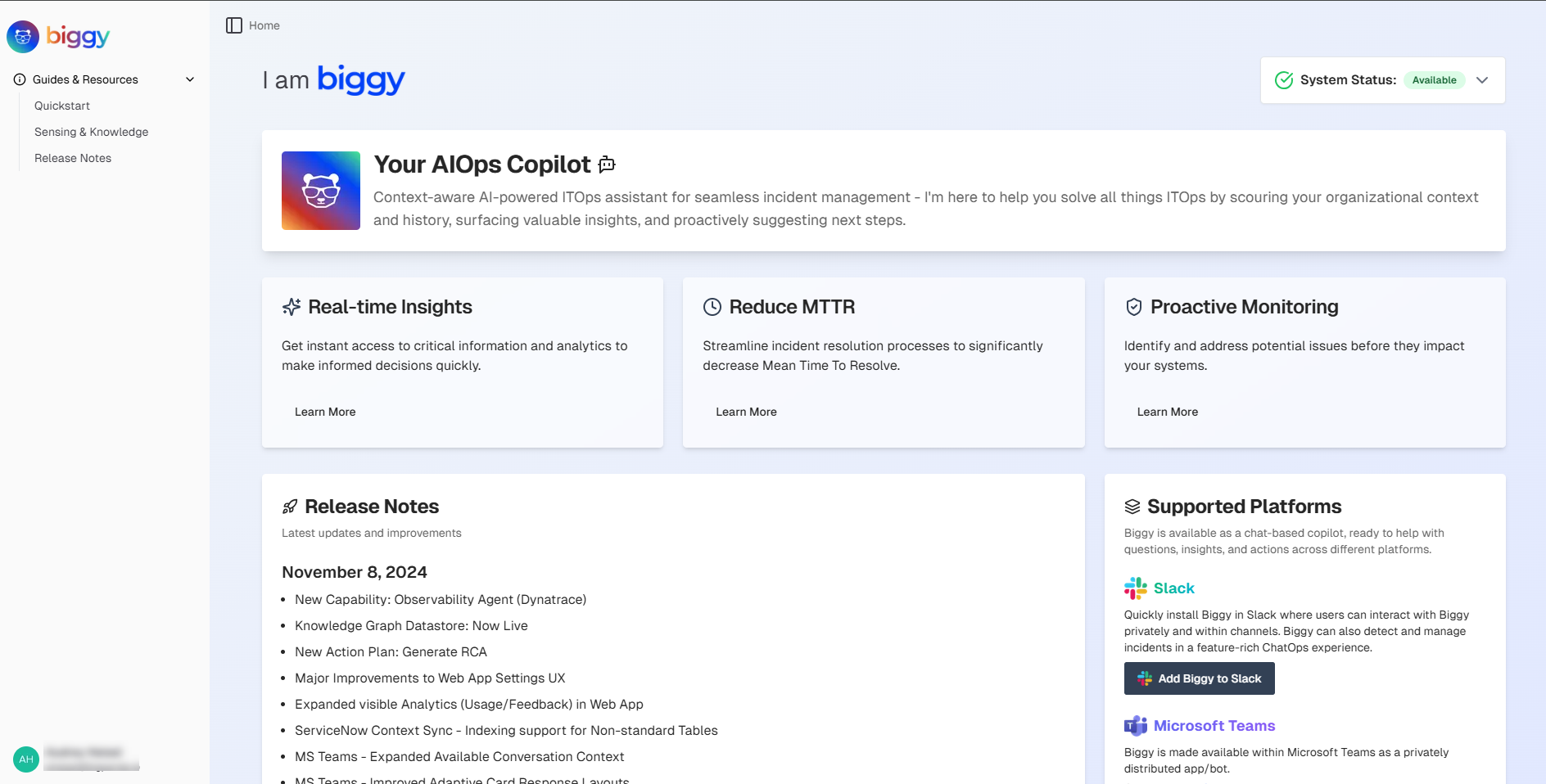
Light Mode
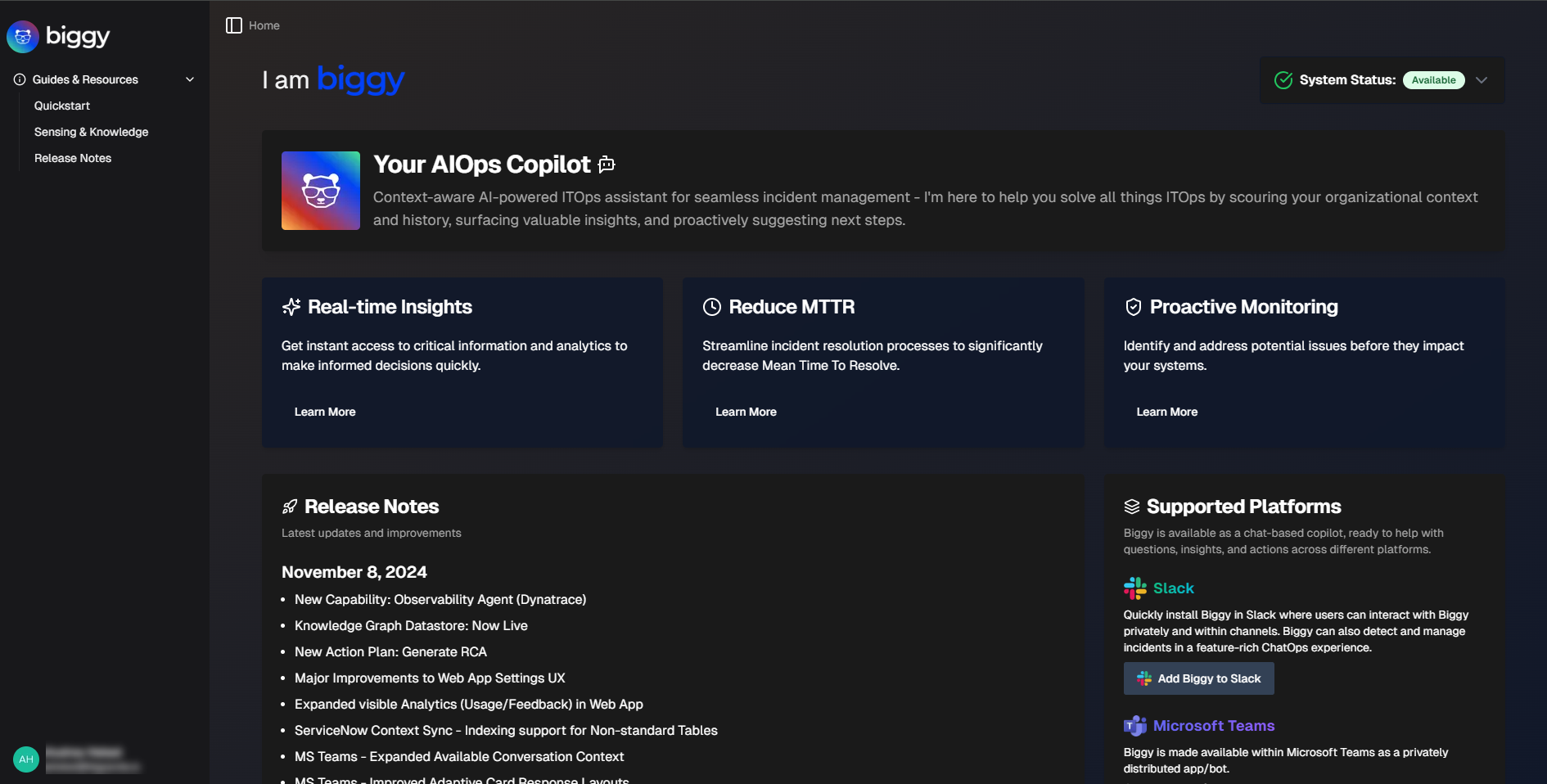
Dark Mode
To change the theme, navigate to the bottom left corner of the Web App screen and click your name. Select either Dark Mode or Light Mode from the menu.
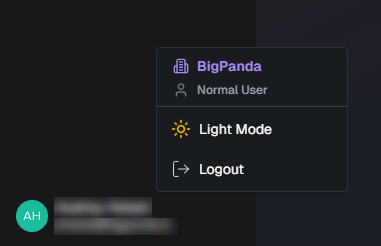
Theme Setting