The Incident Console
The BigPanda Incident Console delivers an incident feed with intuitive usability and performance. The console allows you to accelerate your incident management workflow and surface more actionable insights.
Incident information in BigPanda is managed from a centralized location in the Incident Console within the UI. You can organize, assign, investigate, and escalate incidents as necessary to facilitate a quick resolution.
The Incidents Tab
Environments Pane
Environments filter incidents on properties such as source and priority and group them together for easy visibility and action. Environments make it easy for your team to focus on the incidents relevant to their role and responsibilities. Environments can be used to filter the incident feed, or to create dashboards, set up sharing rules, and simplify incident search.
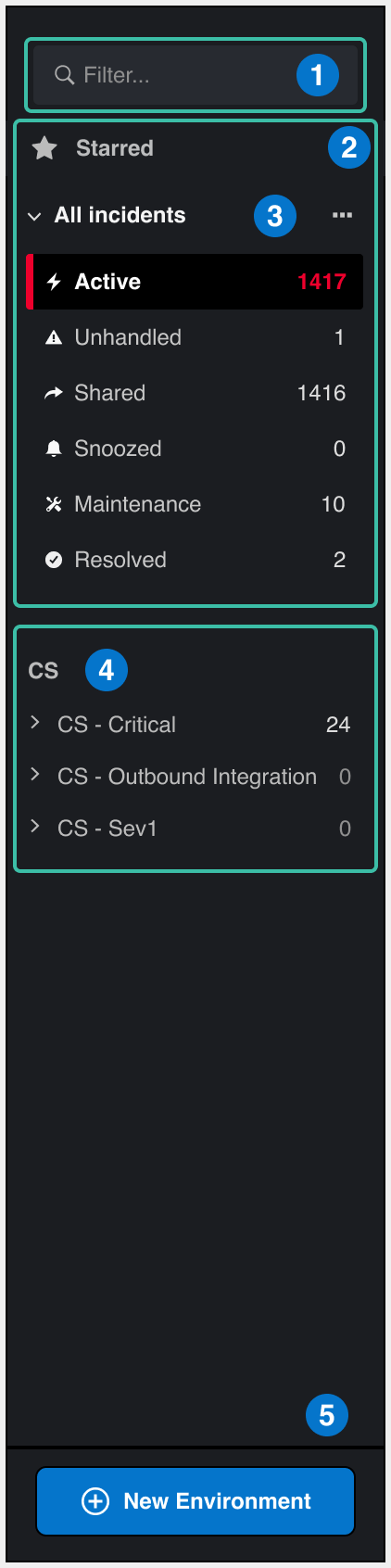 |
The Environments Pane
[block:image]
{
  "images": [
    {
      "image": [
        "https://files.readme.io/367e72a-Incidents_tab_overview_0.2.png",
        "The Environments Pane"
      ],
      "align": "center",
      "border": true,
      "caption": "The Environments Pane"
    }
  ]
}
[/block]
Field | Description | Related Links |
|---|---|---|
1 - Environment Filter | Allows you to filter the Environments pane by folder or group. | |
2 - Starred Environments | Environments that were starred appear at the top of the pane. | |
3 - Environment Groups | Environment Groups organize your environments by common functions or properties, for example, business services, teams, and infrastructure areas. | |
4 - Environment Folder | Each environment is pre-sorted into status folders: Active, Unhandled, Shared, Snoozed, and Resolved. Incidents that fit the environment rules will be automatically placed in their respective status folder(s). | |
5 - Create a New Environment | Click the + New Environment button to add a new Environment. |
Incident Feed
The incident feed provides a consolidated view of all active incidents from any integrated monitoring systems. After you’ve configured your integrations, you can use the incident feed to manage your incidents.
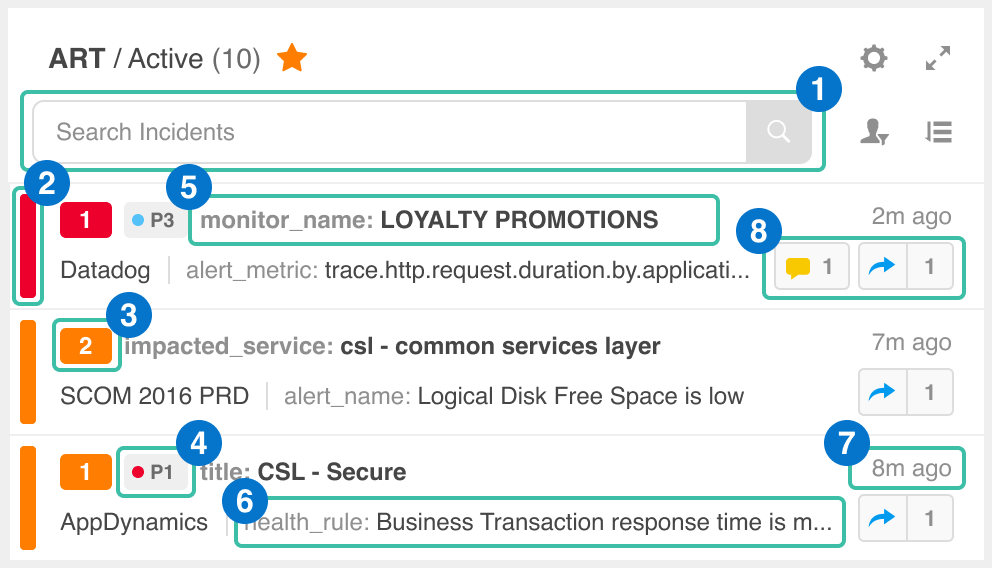 |
The Incident Feed
Field | Description | Related Links |
|---|---|---|
1 - Incident Search | Used to search for incidents. | |
2 - Status Indicator | Displays a colored ribbon on the left to indicate the incident status, which is determined by the most severe status of the related alerts. | |
3 - Number of Active Alerts | Counts the number of related alerts that are in the Critical or Warning state. | |
4 - Priority | Assigned level of importance (most important on top). Incidents that do not have a priority assigned will be listed at the bottom by Last Changed. | |
5 - Primary property | Shows why the alerts are correlated into an incident. By default, the primary property is defined as one of the following: host, service, application, or device. | |
6 - Secondary property | Summarizes the subjects (such as hosts or applications) that are part of the incident. By default, the secondary property is defined as one of the following: check or sensor. | |
7 - Last change, Created, or Duration | Shows information relevant to the current sort order. You can point to it to see more specific information. See Sorting Incidents. | |
8 - Incident Actions | The action icons allow you to resolve, snooze, comment on, or share an incident. |
Incident Details Pane
The Incident Details pane provides a comprehensive view of all information related to an incident. Use the Incident Details pane to view incident history and take action on incidents.
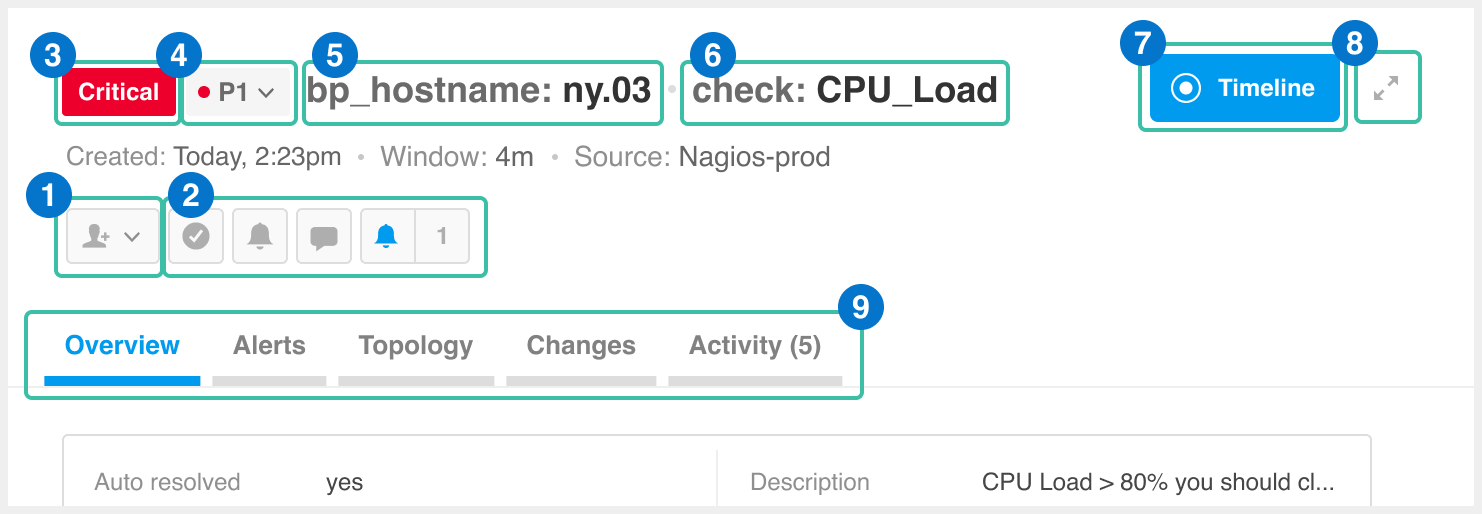 |
The Incident Details Pane
[block:image]
{
  "images": [
    {
      "image": [
        "https://files.readme.io/a00af55-Incidents_tab_overview_0.4.png",
        "The Incident Details Pane"
      ],
      "align": "center",
      "border": true,
      "caption": "The Incident Details Pane"
    }
  ]
}
[/block]
Field | Description | Related Links |
|---|---|---|
1 - Assign Incident | Allows you to assign or update the owner of the incident. | |
2 - Incident Actions | Provides access to the available actions for an incident, such as Resolve, Snooze, Comment, and Share. | |
3 - Status Indicator | Displays a colored ribbon on the left to indicate the incident status, which is determined by the most severe status of the related alerts. | |
4 - Priority | Allows you to view or change the priority of the incident. | |
5 - Primary property | Shows why the alerts are correlated into an incident. By default, the primary property is defined as one of the following: host, service, application, or device. | |
6 - Secondary property | Summarizes the subjects (such as hosts or applications) that are part of the incident. By default, the secondary property is defined as one of the following: check or sensor. | |
7 - Timeline | Allows you to visualize the life cycle of an incident on a timeline, which helps you understand how the incident has unfolded. | |
8 - Expand | Allows you to expand the incident details pane to single pane view. | |
9 - Tabs | The Overview tab, Alerts tab, Topology tab, Changes tab, and Activity tab are accessible from the center of the Incident Details screen. |
Timeline
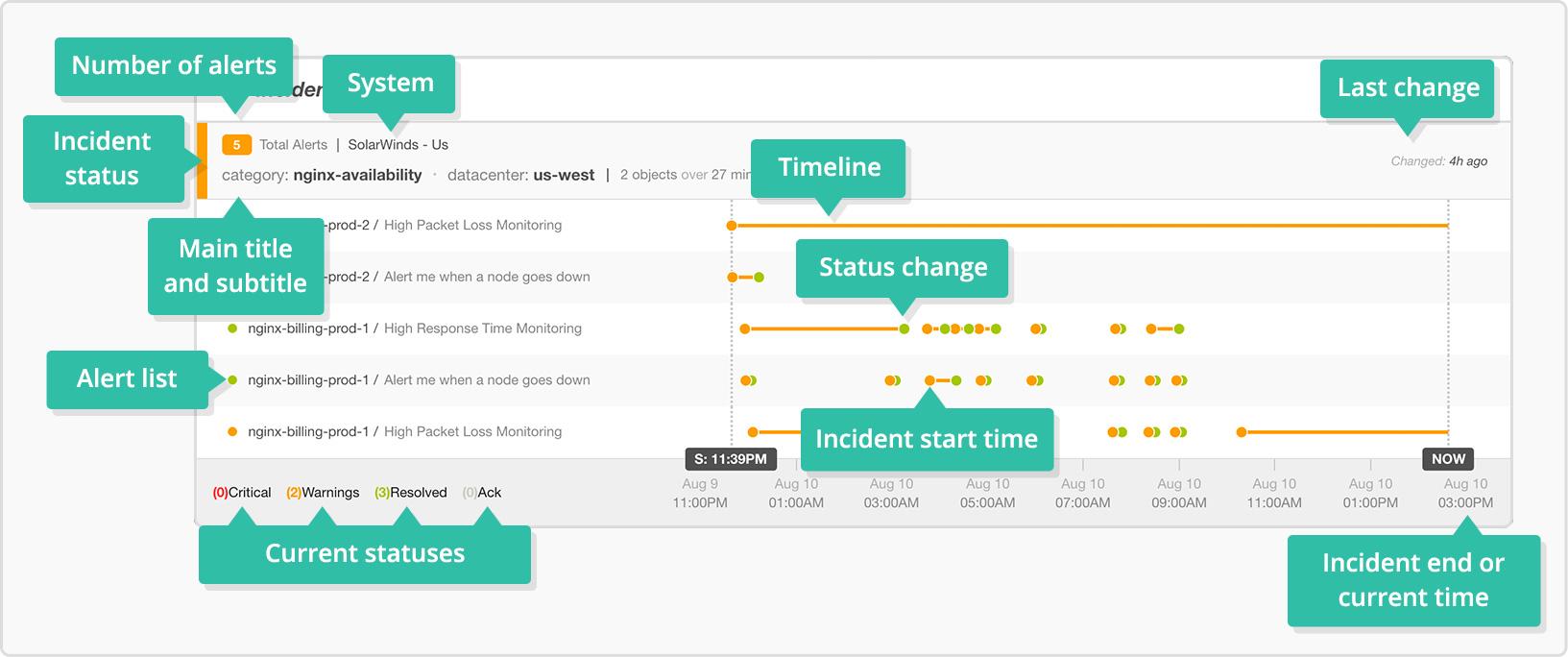 |
The Timeline
The timeline view is accessed within the Incident Details pane. On the right side of the pane, click the blue Timeline button. The timeline visually displays incident information and changes over time. It also shows the time when the first alert was received (incident start time) and the time when the incident was resolved (incident end time), or the current time if the incident is still active.
To see the complete details for an alert at any point in its life cycle, click a dot on the timeline. Then, click the arrows to step through the details of every status change for the alert.
Item | Description | Related Links |
|---|---|---|
Incident Status | Displays a colored ribbon on the left to indicate the incident status, which is determined by the most severe status of the related alerts. The timeline displays a maximum of 70 status changes at a time. | |
No. of Alerts | Counts the total number of alerts that the incident contains, regardless of the current status of the alerts. | |
System | Shows the type of monitoring tool (such as Nagios or Zabbix) and the integration name (such as Production) that the events came from. | |
Primary Property | Shows why the alerts are correlated into an incident. By default, the primary property is defined as one of the following: host, service, application, or device. | |
Secondary Property | Summarizes the subjects (such as hosts or applications) that are part of the incident. By default, the secondary property is defined as check or sensor. | |
Last Change | Calculates the amount of time since the last change to the incident. This calculation includes status changes on related alerts and the addition of new alerts to the incident. | |
Timeline | Shows the history of status changes for every alert that the incident contains. Each row represents the history for an individual alert. | |
Status Change | Displays a colored dot that represents a status change for the related alert. Click a dot to view the alert details at the time of the status change. Then, click the arrows to step through the details of every status change for the alert. | |
Alert List | Lists basic information about each alert that the incident contains, including a colored dot on the left to indicate the current status of the alert. The Timeline displays a maximum of 35 unique alerts at a time. | |
Current Statuses | Counts the number of related alerts that are in each of the current states: Critical, Warning, Ok (resolved), and Ack (acknowledged or maintenance). | |
Incident Start Time | Shows the time when the earliest alert was received. | |
Incident End or Current Time | Shows the time when the incident was resolved (incident end time) or the current time if the incident is still active. |
Navigate the Alerts Tab
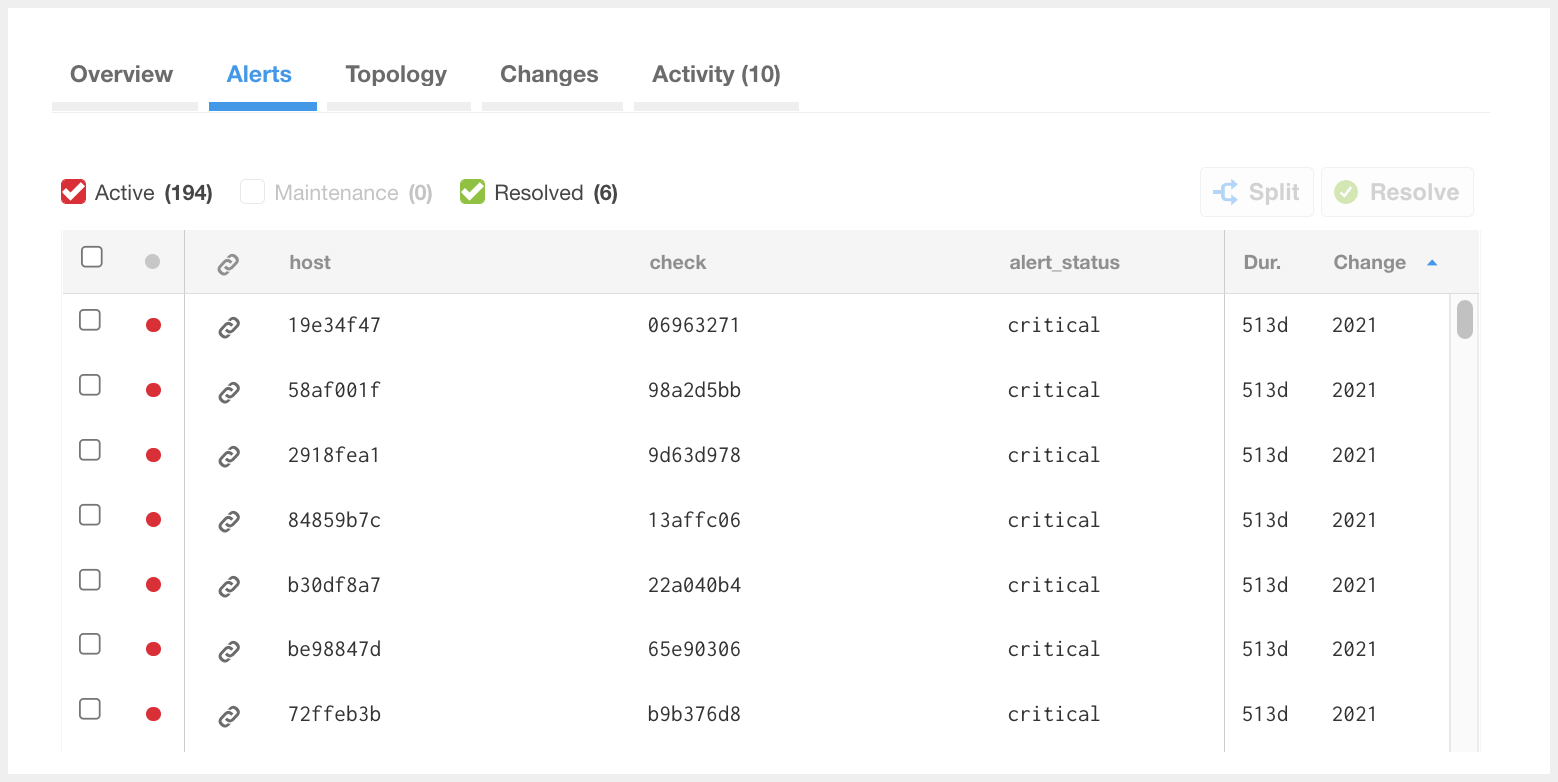
The Alerts Tab
[block:image]
{
  "images": [
    {
      "image": [
        "https://files.readme.io/2821f44-Alerts_tab.png",
        "The Alerts Tab"
      ],
      "align": "center",
      "border": true,
      "caption": "The Alerts Tab"
    }
  ]
}
[/block]
Click any alert within the table to view additional details. The details that appear can be configured by your BigPanda administrator. See Manage Alert Views for information on tailoring the alert view.
Item | Description | Related Links |
|---|---|---|
No. Of Active Alerts | Counts the number of related alerts that are in the Critical or Warning state. Click the checkbox to view only Active alerts. | |
No. of Maintenance Alerts | Counts the number of related alerts that are associated with a Maintenance Plan. Click the checkbox to view only Maintenance alerts. | |
No. of Resolved Alerts | Counts the number of related alerts that have been Resolved. Click the checkbox to view only Resolved alerts. | |
Split | Multiple incident alerts can be split off and handled as a new incident. | |
Status Indicator | Displays a colored dot on the left to indicate the current status of a related alert. | |
Link | Displays a clickable link icon if the alert contains any links to more information, such as runbooks or time-series metrics. | |
System | Shows the type of monitoring tool (such as Nagios or Zabbix) and the integration name (such as Production) that the events came from. | |
Alert Data | Displays the data for each related alert in a table. The column headers show the tag names and the rows show the tag values. You can drag the center divider to resize the incident feed, and columns are added, removed, or resized dynamically as space allows. | |
Duration | Shows the amount of time since the first event for each alert. | |
Last Change | Shows the time of the last status change for each alert. |
Topology Tab
 |
The Topology Tab
[block:image]
{
  "images": [
    {
      "image": [
        "https://files.readme.io/cf6641f-01.png",
        "The Topology Tab"
      ],
      "align": "center",
      "border": true,
      "caption": "The Topology Tab"
    }
  ]
}
[/block]
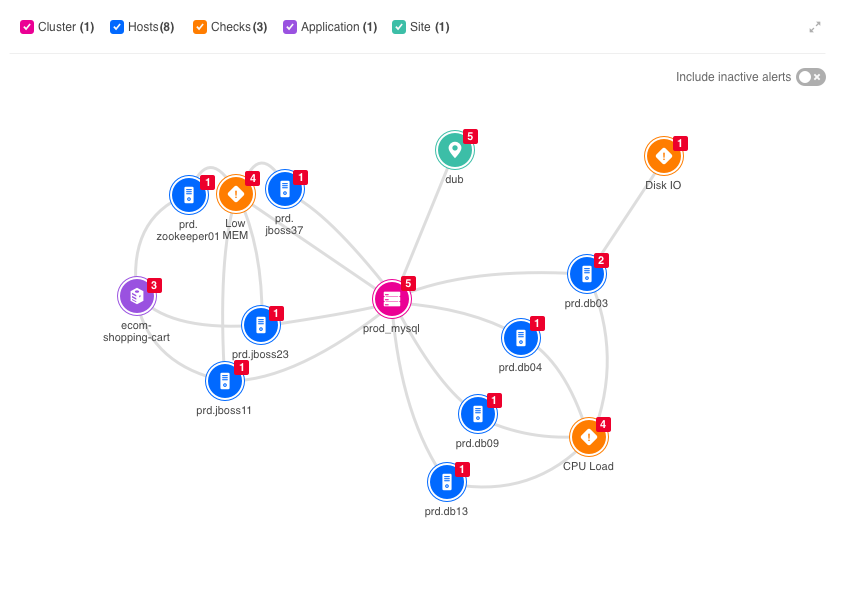
The Topology tab within the Incident Details pane provides access to the Topology graph for the incident. The Topology graph is a customizable visual display of the links between the incident's alert tags, or nodes.
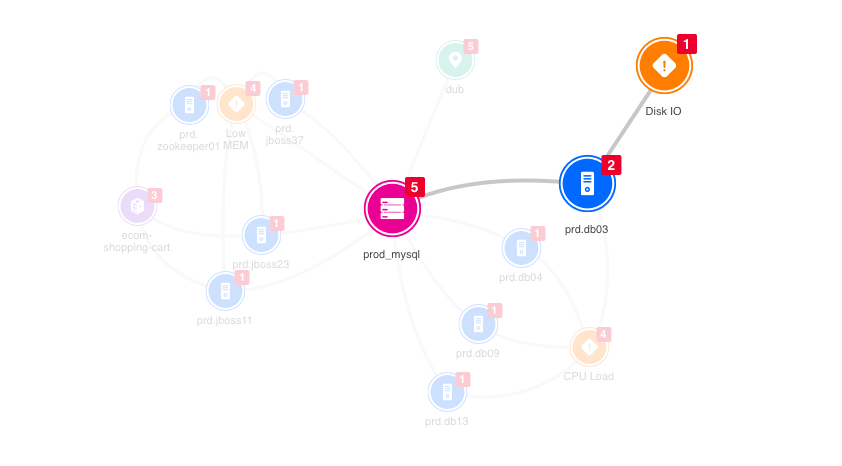
Each node on the topology graph represents an alert’s tag value. The tags present in the incident are labeled by type and displayed as icons in the Topology graph.
The numbers in the corners of the nodes indicate the frequency with which each unique tag and value appears in the incident. The more times a tag appears, the higher the likelihood that it’s a contributor to the root cause of the incident.
The lines connecting the nodes in the graph indicate that the linked nodes appear in the incident’s alerts together. Examining nodes with the most links can provide valuable insight into the possible root cause of the incident.
 |
The Topology Graph
[block:image]
{
  "images": [
    {
      "image": [
        "https://files.readme.io/21ecaab-02B.png",
        "The Topology Graph"
      ],
      "align": "center",
      "border": true,
      "caption": "The Topology Graph"
    }
  ]
}
[/block]
By default, BigPanda connects all the correlation tags into a circle. All the primary tags (ie: host) are connected to their associated correlation tags and the secondary tags (ie: check) are connected to their primary tags.
API Configuration Override
Customizing the graph using the Topology UI API will override BigPanda's default configuration.
The default icons that comprise the Topology graph are permanent and pre-defined by BigPanda. Additional configurable fallback icons are provided to allow users to define their own custom nodes.
The following are the nine permanent icons provided by BigPanda to represent the Topology node tag types:
Icon | Type | Associated Tags | |
|---|---|---|---|
<img src="https://files.readme.io/d55ab6e-server.png"> | server | 'server', 'servers', 'host', 'hosts', 'hostname', 'hostnames', 'host_name', 'host_names', 'device', 'devices', 'instance', 'instances', 'object', 'objects', 'node', 'nodes' | |
<img src="https://files.readme.io/63eb654-location.png"> | location | 'location', 'locations', 'datacenter', 'datacenters', 'dc', 'store', 'stores', 'site', 'site_code', 'store_id', 'region', 'regions', 'city', 'country', 'geo' | |
<img src="https://files.readme.io/c6ae707-check.png"> | check | 'check', 'checks', 'trigger', 'triggers', 'alert_type', 'alert_name', 'health_rule', 'summary', 'monitor', 'health_rules', 'title', 'titles' | |
<img src="https://files.readme.io/7b9ad31-env.png"> | environment | 'environment', 'environments', 'env', 'envs', 'tier', 'tiers', 'stage' | |
<img src="https://files.readme.io/7c4ab11-app.png"> | application | 'application', 'applications', 'app', 'apps', 'service', 'services', 'business_service' | |
<img src="https://files.readme.io/5177a9c-ip.png"> | IP | 'ip_address', 'ipaddress', 'ipaddresses', 'ip_class_b', 'ip_class_c', 'ip' | |
<img src="https://files.readme.io/3798f22-router.png"> | router | 'router', 'routers', 'switch', 'switches', 'hub', 'repeater', 'bridge', 'gateway' | |
<img src="https://files.readme.io/c3cf911-cluster.png"> | cluster | 'rack', 'cluster', 'clusters', 'tower', 'towers' | |
<img src="https://files.readme.io/619013b-team.png"> | team | 'owner', 'owners', 'team', 'teams', 'group', 'groups', 'assignment_group', 'responsible_group' |
 |
Topology Filters
[block:image]
{
  "images": [
    {
      "image": [
        "https://files.readme.io/845ed0f-Topology_Filters.png",
        "Topology Filters"
      ],
      "align": "center",
      "border": true,
      "caption": "Topology Filters"
    }
  ]
}
[/block]
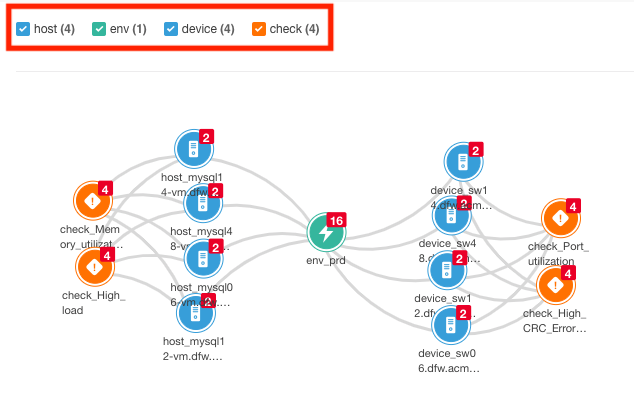
The node filtering options at the top of the Topology tab can be used to show/hide the nodes in the graph according to their corresponding tag type. The numbers beside the nodes in the filter represent the frequency with which the node appears in the topology graph.
Navigate the Changes Tab
Advanced Insight Module
This feature is part of the Advanced Insight Module. If your organization has not purchased this module, you may not have access to the feature.
If you are interested in upgrading to the Advanced Insight Module, contact your BigPanda account team.
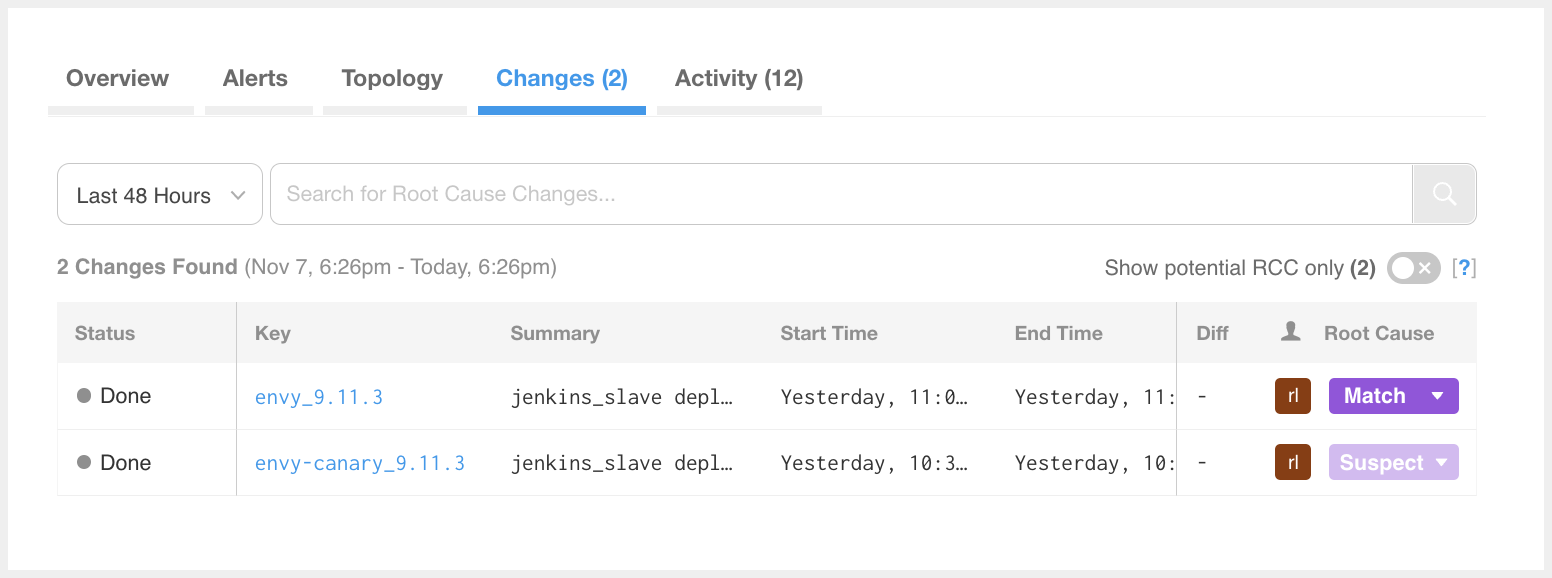
The Changes Tab
The change table contains columns that provide background information on the change.
Column | Description |
|---|---|
Status | The status of the change can be Planned, In Progress, Done. Canceled changes persist in BigPanda but are not displayed in the change table. |
Key | The key is the original ID from the integrated change. Click the hyperlinked change ID in the Key column of the table to view changes in the external change feed. |
Summary | A short description of the change. |
Start Time/End Time | The timestamps marking the duration of the change. |
Root Cause | Changes that may be a suspected or matched root cause of the incident can be marked manually. |
You are able to change the size and order of the columns within the change table. Hover over the space between column names to bring up the dividing line or the 6 dots.
To resize a column, click and drag the dividing line to the desired column width
To move a column, click and drag the 6 dots icon to the desired column placement
Show Potential RCC Only Toggle
Use the Show potential RCC only toggle to limit the change table to only show changes BigPanda has found highly correlated with the incident.
Click on any one of the changes in the table to see a pop-up with the full list of tags and other data associated with the change.
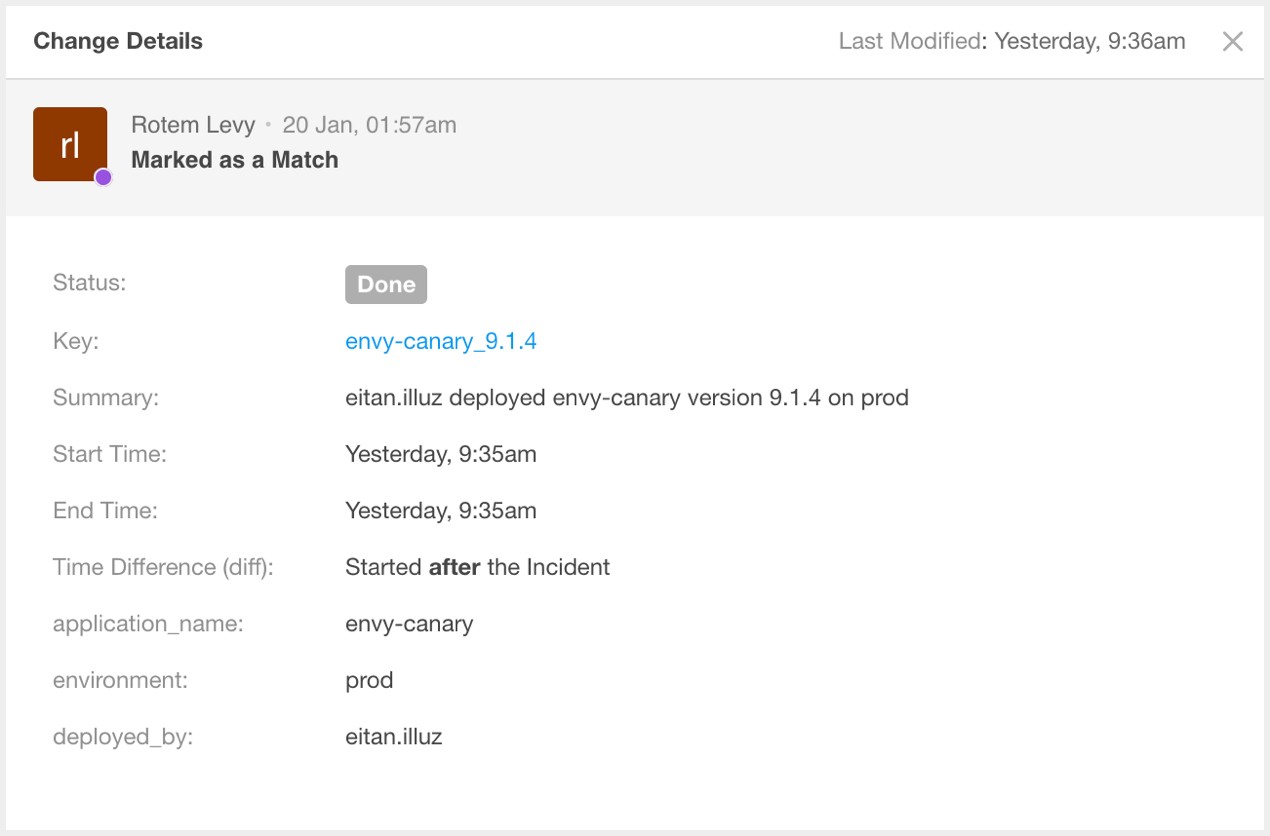 |
Change Info - BigPanda Suggestion
If the BigPanda change correlation algorithm marked the change as a suspected match, it will include a note about why the algorithm suspects the change. Hover over the information icon beside the note to get more details about why BigPanda suspects that change.
Suspect Changes
BigPanda will only mark changes as Suspect (and not Match) to give users the final say on whether or not the change is the root cause of the incident.
Activity Tab
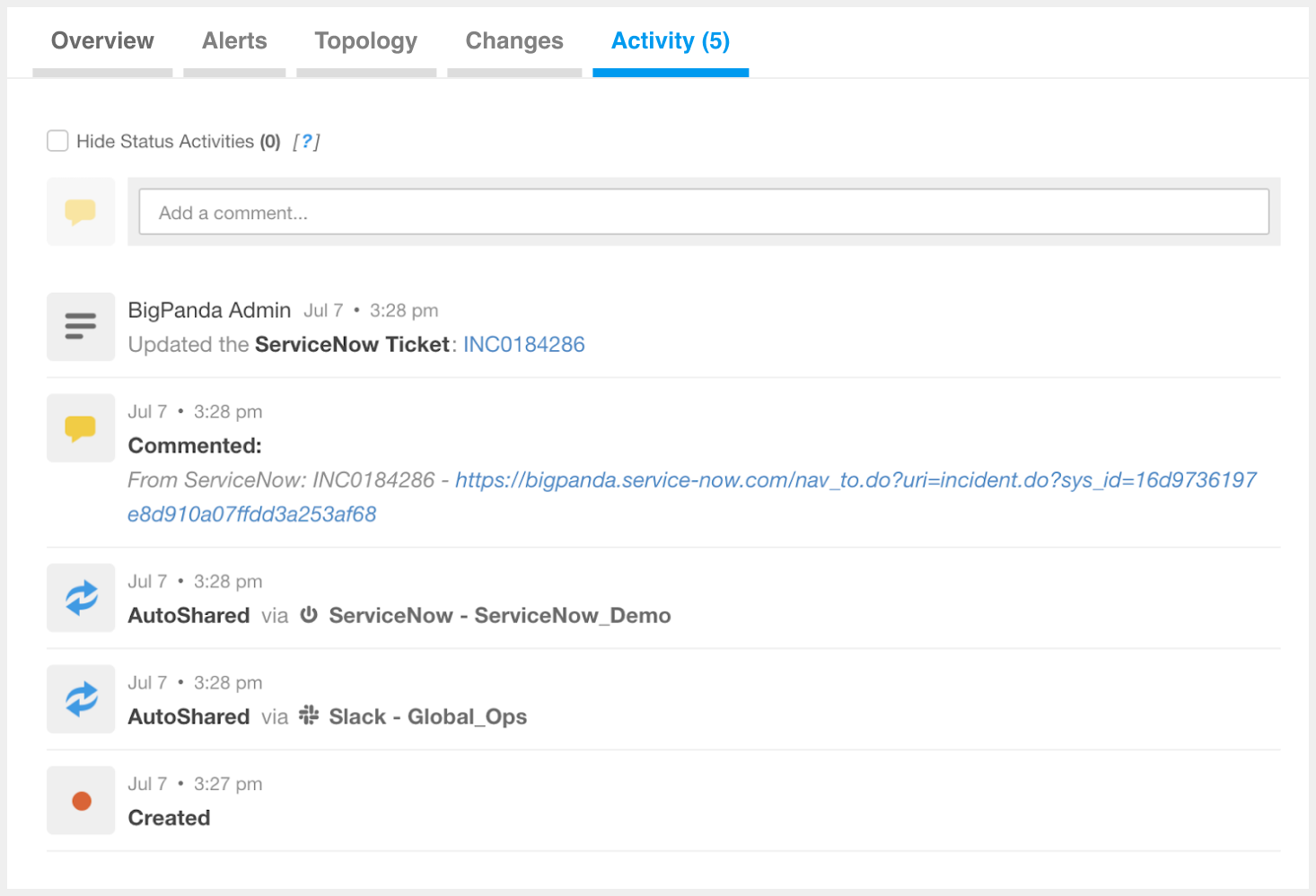 |
The Activity Tab
[block:image]
{
  "images": [
    {
      "image": [
        "https://files.readme.io/a95f4da-Incidents_tab_-_Activity_Feed.png",
        "The Activity Tab"
      ],
      "align": "center",
      "border": true,
      "caption": "The Activity Tab"
    }
  ]
}
[/block]
The Activity tab within the Incident Details pane provides information about activities that occurred within an incident. Within this tab, you can view and add comments, see previous incident actions, and view status changes such as flapping, resolve, reopen, and auto-resolution.
Recent Activities
Only the 1000 most recent activities appear in the BigPanda UI. If an incident has more than 1000 activities, all of them can be retrieved using the Get Activities API.
Item | Description | Related Links |
|---|---|---|
Hide Status Activities | Allows you to hide Resolved, Reopened, and Flapping activities. | |
Comment Field | Allows you to comment on the incident. Comments are added as events in the activity feed. | |
Event Indicator | Displays an icon beside each item in the event list to indicate the type of event. See Event Indicators below for a description of each icon. | |
Username | Shows the user who made the update, if applicable. | |
Event Time | Shows the exact time the event occurred. | |
Event Type | Shows the type of event that occurred. | |
Event Details | Shows more information about the event, depending on the event type. For example: For sharing events, shows the channel, recipients, and annotation, if applicable. If the recipient is an external ticketing system, provides a link directly to the ticket (for example, a JIRA ticket). For snoozed events, shows the ending time of the snooze period. For comment events, shows the comment text. | |
Day Separator | Indicates the day the preceding events occurred, if the list of events spans more than one calendar day. Because the event list is sorted with the most recent event on top, the day separator appears below the events that occurred on a given day. |
Event Indicators
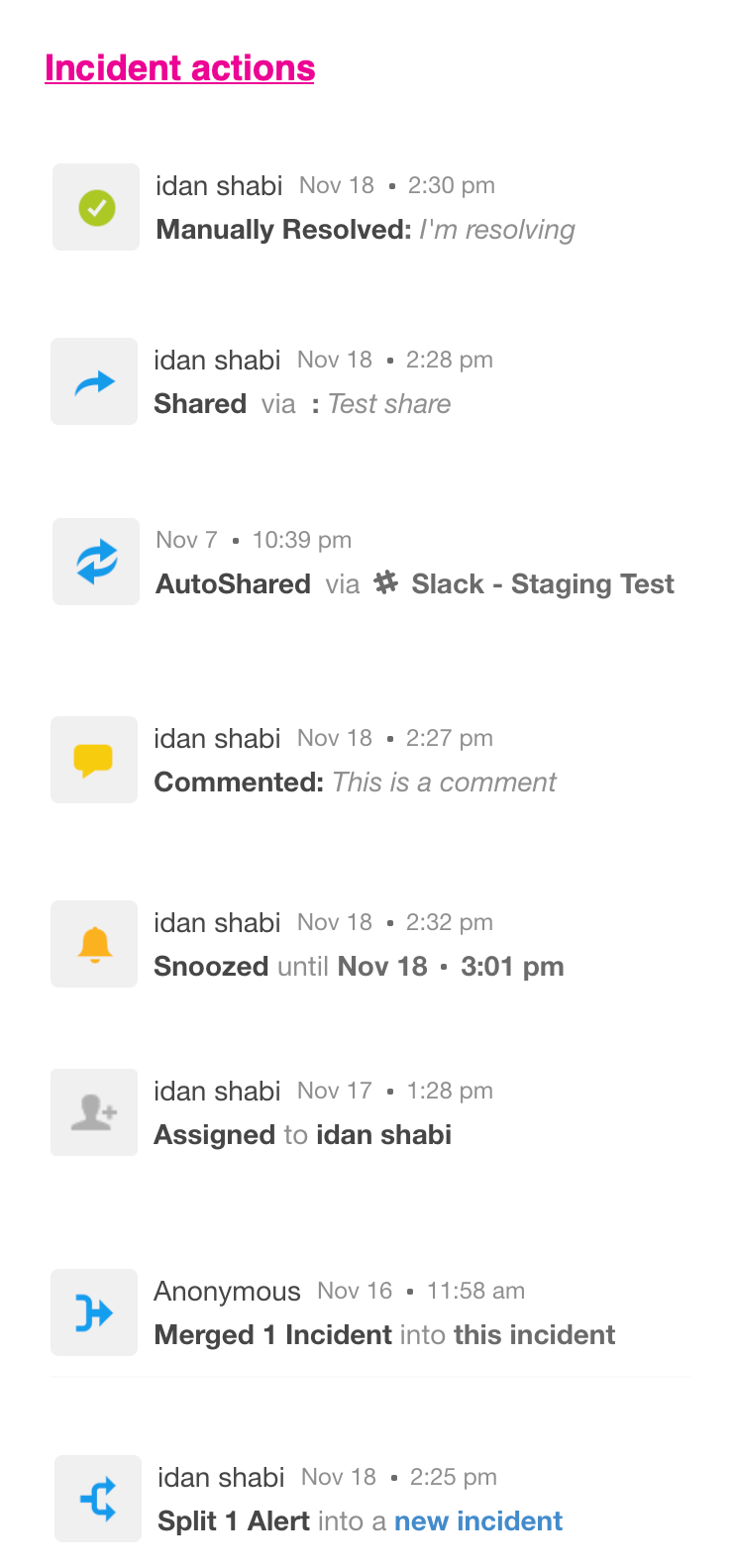 |
Incident Actions Icons
[block:image]
{
  "images": [
    {
      "image": [
        "https://files.readme.io/ff9b21f-Incident_Actions_Icons.png",
        "Incident Actions Icons"
      ],
      "align": "center",
      "border": true,
      "caption": "Incident Actions Icons"
    }
  ]
}
[/block]
Incident Action | Icon |
|---|---|
Manually Resolved | Green checkmark |
Shared | Blue arrow |
AutoShared | Blue double arrows |
Commented | Yellow dialog box |
Snoozed | Yellow bell |
Assigned | Grey bust with plus |
Merged | Blue many to one arrow |
Split | Blue one to many arrows |
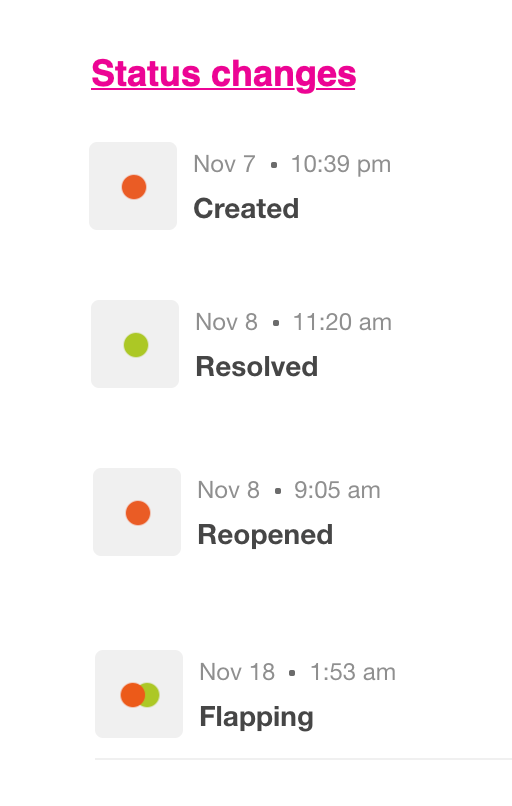 |
Status Change Icons
[block:image]
{
  "images": [
    {
      "image": [
        "https://files.readme.io/d59c252-Status_Change_Icons.png",
        "Status Change Icons"
      ],
      "align": "center",
      "border": true,
      "caption": "Status Change Icons"
    }
  ]
}
[/block]
Incident Action | Icon |
|---|---|
Created | Orange dot |
Resolved | Green dot |
Reopened | Orange dot |
Flapping | Orange and green dots |
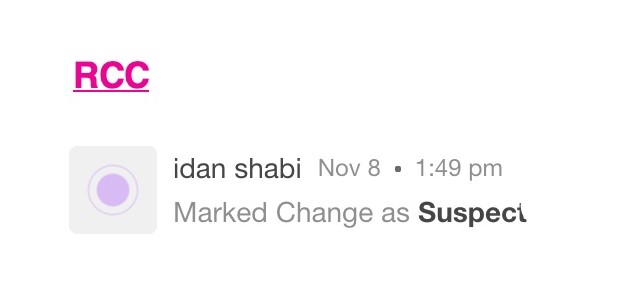 |
RCC Activity Icons
[block:image]
{
  "images": [
    {
      "image": [
        "https://files.readme.io/7dbfa01-RCC_icons.jpg",
        "RCC Activity Icons"
      ],
      "align": "center",
      "border": true,
      "caption": "RCC Activity Icons"
    }
  ]
}
[/block]
Incident Action | Icon |
|---|---|
Marked Change | Purple dot |
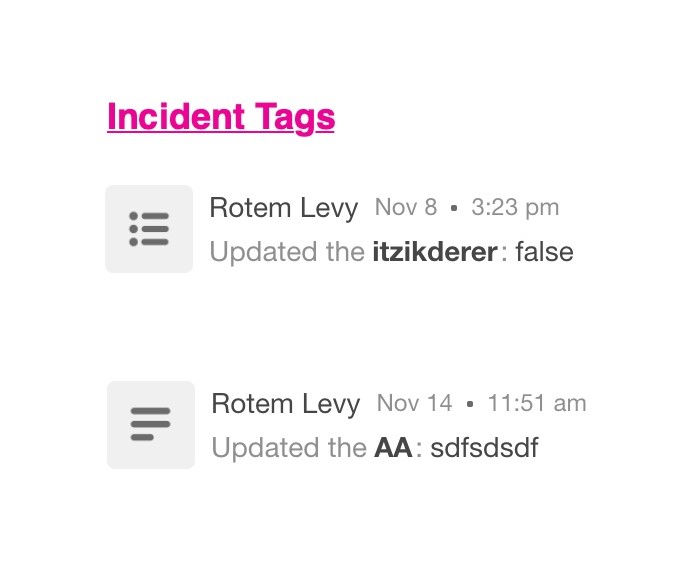 |
Incident Tags Activity Icons
[block:image]
{
  "images": [
    {
      "image": [
        "https://files.readme.io/9b03ed4-Incident_Tags_Icons.jpg",
        "Incident Tags Activity Icons"
      ],
      "align": "center",
      "border": true,
      "caption": "Incident Tags Activity Icons"
    }
  ]
}
[/block]
Incident Action | Icon |
|---|---|
Updated a Multi-select Field | Grey bullet point lines |
Updated a Single String Field | Grey paragraph lines |
The Overview Tab
Automated Incident Analysis
Advanced Insight Module
This feature is part of the Advanced Insight Module. If your organization has not purchased this module, you may not have access to the feature.
If you are interested in upgrading to the Advanced Insight Module, contact your BigPanda account team.
Automated Incident Analysis leverages Large Language Model AI to provide plain-language incident titles and detailed descriptions built from enriched, actionable incident data.
Automated Incident Analysis helps your team quickly understand causality and impact, dramatically shortening resolution time.
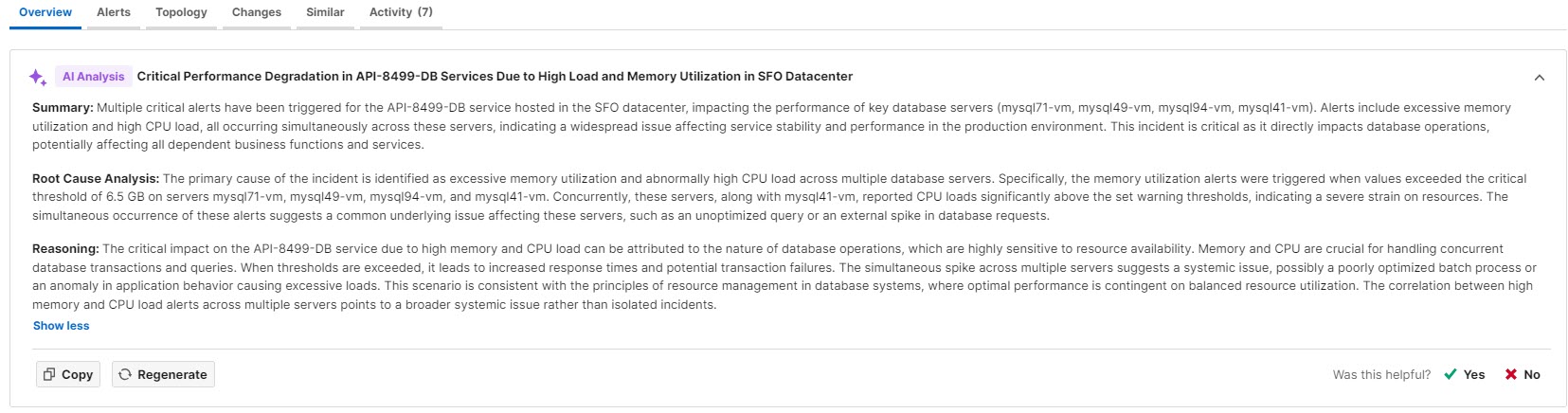
Automated Incident Analysis
For more information, see the AI Incident Analysis documentation.
Incident Tags
Incident tags add key information and context right in BigPanda.
Hover over the name of the incident tag to see information about the user who edited the tag and the time and date of the change. Tags that have not been manually edited will show the last date and time that automatic incident enrichment occurred.
Incident tags may be single-select or multi-value.
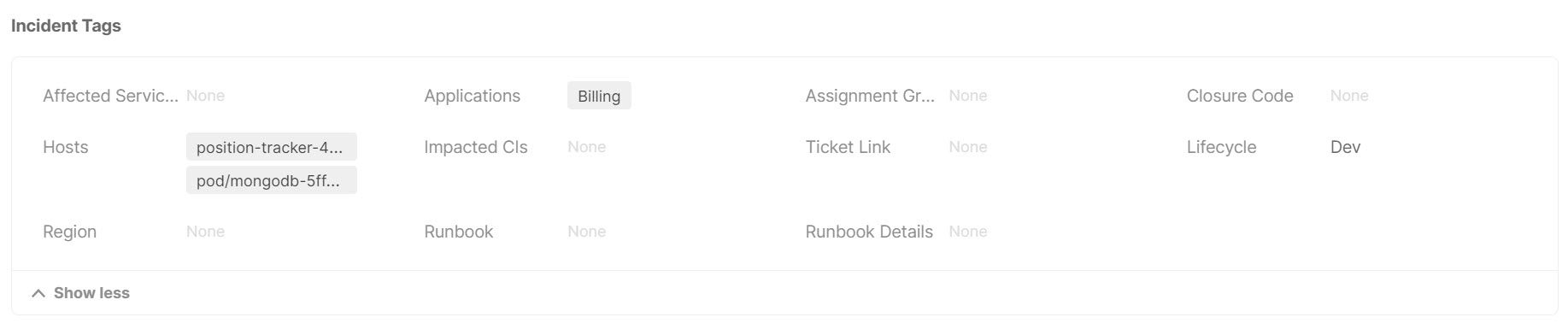
Incident Tags
See the Incident Tags documentation for more information.
Active Alerts
The Active Alerts section displays a summary of the information that appears in the Alerts Tab. Here you can find information about active alerts and take actions on them such as split and merge.

Active Alerts
See the Alerts Tab documentation for more information.
Root Cause Changes
The Root Cause Changes section shows you the change details, changes that were marked as a Suspect, and the change suspect score.

Root Cause Changes
To see full change details, see the Changes Tab .
Activity
The Activity section displays the five most recent activities from the Activity tab, with no filtering applied.
To see the full activity history, see The Activity Tab.
The Alerts Tab
Navigate the Alerts Tab
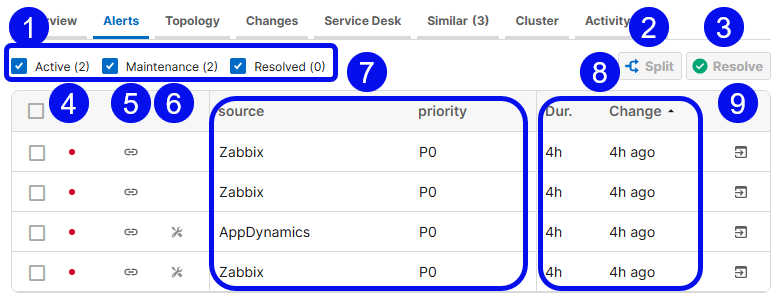
The Alerts Tab
Click any alert within the table to view additional details. The details that appear can be configured by your BigPanda administrator. See Manage Alert Views for information on tailoring the alert view.
Item | Description | Related Links |
|---|---|---|
1 - Alert Filters | Click a checkbox to filter the Alerts table. You can filter by Active, Maintenance, or Resolved alerts. Each checkbox displays the number of alerts that are currently in that state. Active alerts are currently in the Critical or Warning state. Maintenance alerts are alerts that are currently suppressed by a maintenance plan. Resolved alerts are alerts that have been either manually or automatically resolved. | |
2 - Split | Select one or more alerts and click the Split button to separate them into a new incident. | |
3 - Resolve | Select one or more alerts and click the Resolve button to resolve the alerts in BigPanda. | |
4 - Status Indicator | Displays a colored dot on the left to indicate the current status of a related alert. | |
5 - Link | If the alert contains links to more information, such as runbooks or time-series metrics, a clickable link icon will be displayed. | |
6 - Maintenance Icon | If the alert was matched to an active maintenance plan, the maintenance icon appears. Hover over the icon to see details about all matched maintenance plans for the alert. This column does not appear if no alerts in the incident were affected by maintenance plans. | |
7 - Alert Data | Displays the data for each related alert in a table. The column headers show the tag names and the rows show the tag values. You can drag the center divider to resize the incident feed, and columns are added, removed, or resized dynamically as space allows. Click the arrow icon at the far right of the Alerts table to open the Alert Info window, which contains full alert data. | |
8 - Duration and Last Change | The Duration column displays the amount of time since the first event for each alert. The Last Change column shows the time of the last status change for each alert. | |
9 - Open pane | Open the alert in a separate pane for easy viewing. |
The Topology Tab
The Topology Graph
Each node on the topology graph represents an alert tag value. The tags present in the incident are labeled by type and displayed as icons in the Topology graph.
The numbers in the corners of the nodes indicate the frequency with which each unique tag and value appears in the incident. The more times a tag appears, the higher the likelihood that it’s a contributor to the root cause of the incident.
The lines connecting the nodes in the graph indicate that the linked nodes appear in the incident’s alerts together. Examining nodes with the most links can provide valuable insight into the possible root cause of the incident.
The Topology Graph
By default, BigPanda connects all the correlation tags into a circle. All the primary tags (ie: host) are connected to their associated correlation tags and the secondary tags (ie: check) are connected to their primary tags.
Customizing the Graph
Customizing the graph using the Topology UI API will override BigPanda's default configuration.
Topology Graph Icons
The default icons that comprise the Topology graph are permanent and pre-defined by BigPanda. Additional configurable fallback icons are provided to allow users to define their own custom nodes.
The following are the nine permanent icons provided by BigPanda to represent the Topology node tag types:
Icon | Type | Associated Tags |
|---|---|---|
 | server | 'server', 'servers', 'host', 'hosts', 'hostname', 'hostnames', 'host_name', 'host_names', 'device', 'devices', 'instance', 'instances', 'object', 'objects', 'node', 'nodes' |
 | location | 'location', 'locations', 'datacenter', 'datacenters', 'dc', 'store', 'stores', 'site', 'site_code', 'store_id', 'region', 'regions', 'city', 'country', 'geo' |
 | check | 'check', 'checks', 'trigger', 'triggers', 'alert_type', 'alert_name', 'health_rule', 'summary', 'monitor', 'health_rules', 'title', 'titles' |
 | environment | 'environment', 'environments', 'env', 'envs', 'tier', 'tiers', 'stage' |
 | application | 'application', 'applications', 'app', 'apps', 'service', 'services', 'business_service' |
 | IP | 'ip_address', 'ipaddress', 'ipaddresses', 'ip_class_b', 'ip_class_c', 'ip' |
 | router | 'router', 'routers', 'switch', 'switches', 'hub', 'repeater', 'bridge', 'gateway' |
 | cluster | 'rack', 'cluster', 'clusters', 'tower', 'towers' |
 | team | 'owner', 'owners', 'team', 'teams', 'group', 'groups', 'assignment_group', 'responsible_group' |
Filter
The node filtering options at the top of the Topology tab allows you to show or hide the nodes in the graph according to their corresponding tag type. The numbers beside the nodes in the filter represent the frequency with which the node appears in the topology graph.
Topology Filters
The Changes Tab
Navigate the Changes Tab
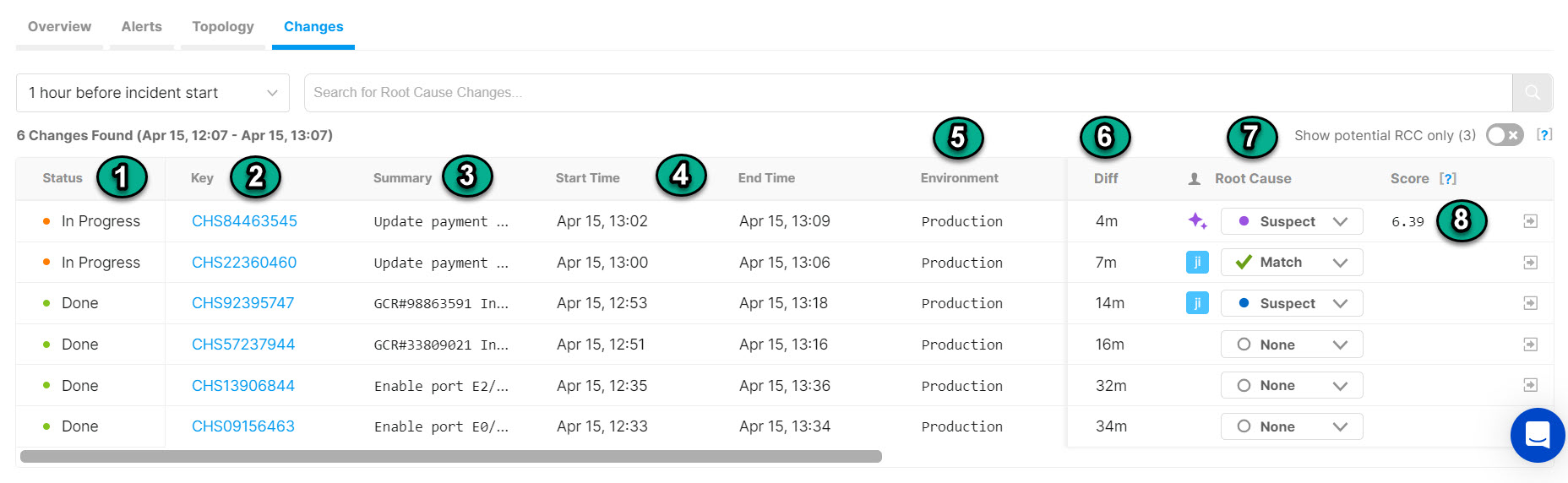
The Changes Tab
The change table contains columns that provide background information on the change.
Column | Description |
|---|---|
1 - Status | The status of the change. Possible change statuses are Planned, In Progress, and Done. Canceled changes persist in BigPanda but are not displayed in the change table. |
2 - Key | The key is the original ID from the integrated change. Click the hyperlinked change ID in the Key column of the table to view changes in the external change feed. |
3 - Summary | A short description of the change. |
4 - Start Time/End Time | Timestamps marking the duration of the change. |
5 - Change columns | Depending upon what data you send to BigPanda, additional change columns containing information such as Environment, Risk Impact, etc., appear in the table. |
6 - Diff | The difference between the change start time and the incident start time, in minutes. |
7 - Root Cause | You can manually mark a change as Suspect, Match, or None. Changes that were automatically marked as Suspect appear with a purple icon. |
8 - Score | The change causation score. A higher score indicates a more likely suspect. |
You are able to change the size and order of the columns within the change table. Hover over the space between column names to bring up the dividing line or the 6 dots.
To resize a column, click and drag the dividing line to the desired column width
To move a column, click and drag the 6 dots icon to the desired column placement
Show Potential RCC Only Toggle
Use the Show potential RCC only toggle to limit the change table to only show changes BigPanda has found highly correlated with the incident.
Click any one of the changes in the table to see a pop-up with the full list of tags and other data associated with the change.
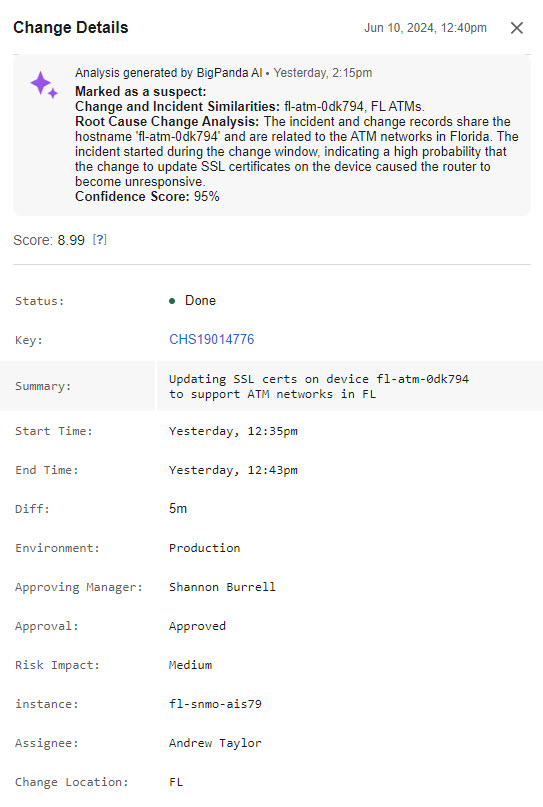
Change Details
Any environments configured with Automated Incident Analysis will automatically include an AI-generated explanation for why BigPanda marked a change as a potential root cause. This explanation provides more context and better insights into matches, saving you time as you hunt down the root cause of an incident.
Suspect changes
BigPanda will only mark changes as Suspect to give users the final say on whether or not the change is the incident's root cause.
The Similar Tab
Navigate the Similar Tab
Similar incidents are ranked in order based on their similarity score, with the most similar incidents appearing first. See the Similarity Calculation documentation for more information about how the score is calculated.
Number of similar incidents
The number of similar incidents found within the past 30 days appears within both the Overview tab and on the Similar tab itself. This allows you to see if recent similar incidents are available prior to clicking the tab.
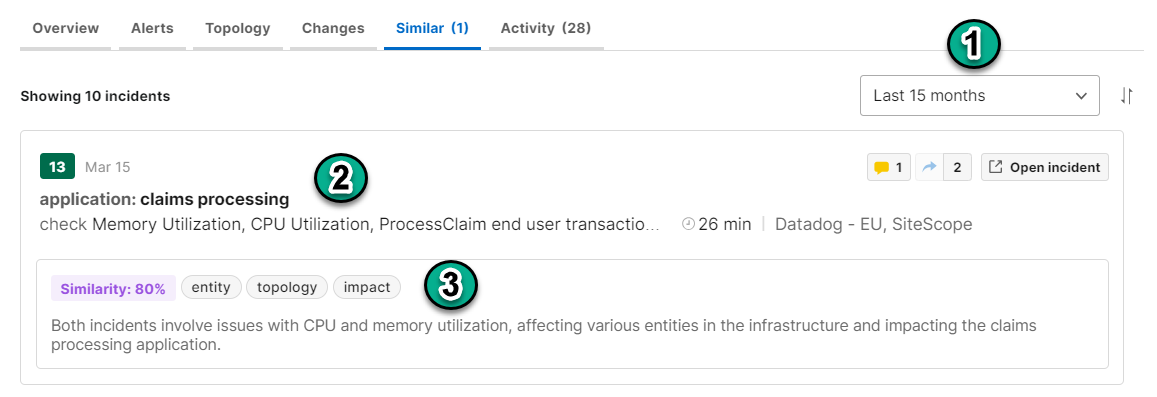
Field | Description | Related Links |
|---|---|---|
Date Filter | Adjust the date range that similar incidents may be selected from. | |
Incident Details | Details about the similar incident including the incident title, assignee, number of alerts, priority, comments, and shares. | |
Similarity Score, Matched Similarity Categories, and Summary | The similarity score, which categories were matched, and a summary explaining the matches appears to the right of the incident details. The similarity score match percentage is calculated based on the matched similarity categories. |
The Activity Tab
Activity Log Filter
The activity log filter allows you to select specific event types to narrow the log, allowing you to find exactly what you need.
Filter Selection
Activity log filter selections are applied per user.
BigPanda will remember your activity log filter selection and apply it to all incidents until the filter has been cleared or a new selection is made.
To filter the activity log, click the Recent Activity drop-down menu, and select one or more categories.
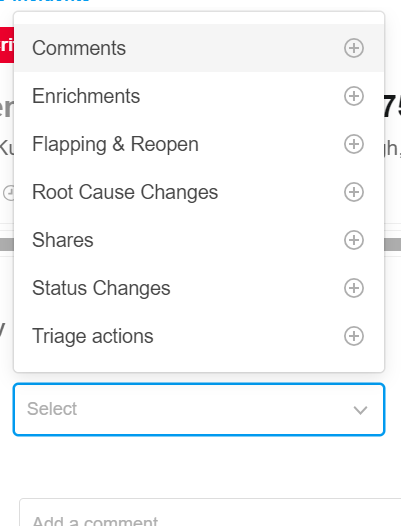
Activity Log Filter
Event Category | Event Types |
|---|---|
Comments | User commented on an incident |
Enrichment | AI update Manual or automatic tag update |
Flapping & Reopen | Incident entered flapping state Incident reopened |
RCC | Change was marked as suspect |
Shares | Incident was AutoShared Incident was manually shared |
Status Changes | Alert payload-driven changes Incident was manually resolved Incident entered maintenance |
Triage Actions | Priority was assigned or changed Incident was assigned Incident was snoozed Incident was merged with another incident Incident was split |