Integrate with AI Incident Assistant and Prevention
AI Incident Assistant automates triage, investigation, and communication during an active incident, and AI Incident Prevention identifies patterns and risks across historical data so your team can act before the next incident starts.
Integrations for these products are configured differently from monitoring or alert integrations. Instead of streaming alert data into BigPanda, they give the AI agents access to the tools and data sources they need to investigate, take action, and share context with your team. Configure each integration once and the AI Incident Assistant can call it during any relevant action plan.
AI Incident Assistant data sources
AI Incident Assistant integrations are grouped by the kind of work the agent performs with them:
Model Context Protocol - A flexible, open standard for connecting AI Incident Assistant to tools that do not have a dedicated integration. Use MCP to bring your own observability or ITSM tooling into agent workflows.
Chat and Conferencing - Lets the Biggy post updates, summaries, and action items in Microsoft Teams, Slack, Webex, and Zoom, and open incident channels or bridges for live collaboration.
CMDB - Gives the agent service ownership, maturity, and dependency context from tools such as OpsLevel so that recommendations align with how your services are organized.
ITSM - Connects to ServiceNow, Jira, and BMC Remedy so the agent can read tickets, post updates, and create or link records as part of an action plan.
Observability - Grants the agent access to monitoring and telemetry tools such as Datadog, Dynatrace, Elasticsearch, Grafana, New Relic, Prometheus, Splunk, and ThousandEyes for deeper investigation.
On-Call - Integrates with PagerDuty, OpsGenie, Grafana OnCall, Everbridge, Jira Service Management, and MIR3 so the agent can page the right responder and reference on-call schedules.
Source Control - Connects to GitHub to correlate recent code changes with incidents and surface relevant pull requests during investigations.
AI Incident Prevention data sources
AI Incident Prevention does not require dedicated integrations of its own. Instead, it draws on data already flowing into the BigPanda IT Knowledge Graph through:
Unified Data Connector pipelines for ITSM, change, knowledge, and external signal data.
Event Intelligence and ADR integrations that supply live alert, incident, change, and topology data.
The more complete your UDC pipelines and alert integrations, the more accurate AI Incident Prevention's pattern detection will be. See BigPanda Unified Data Connector for the recommended tables and sync settings.
Connecting on-prem tools
Many AI Incident Assistant integrations support both cloud and on-prem deployments. For tools running behind a firewall, use the Relay Client to enable secure communication without exposing your infrastructure to the internet.
Deployment type
When configuring any on-prem integration, select the correct Deployment Type so that Biggy applies the right guardrails and endpoint behavior for your agents.
Configure AI Incident Assistant Integrations
On the Configuration tab, you can see the full list of available integrations and details about each integration.
Use the search bar to find a specific integration, or filter the list of action plans by Category, Type (Standard or Custom), or Status (Enabled or Disabled).
You can enable and manage integrations from the AI Incident Assistant web app at Configuration > Integrations.
To integrate with AI Incident Assistant:
Navigate to Configuration > Integrations.
Select an integration from the list and click Configure.
In the configuration screen, populate the required fields for your integration. See the Standard Integrations section for more information about specific configuration requirements.
Select the Enable toggle.
Click Save.
Once an integration has been set up, it will appear in the list with a green Enabled icon.
To edit or disable an integration, you can click the Configure button and make any desired changes.
Routing Insights
The Routing Insights tab displays information about observability and on-call integration routing failures. If you have multiple instances of a single integration, routing failures can occur when Biggy cannot determine which instance to route a request to.
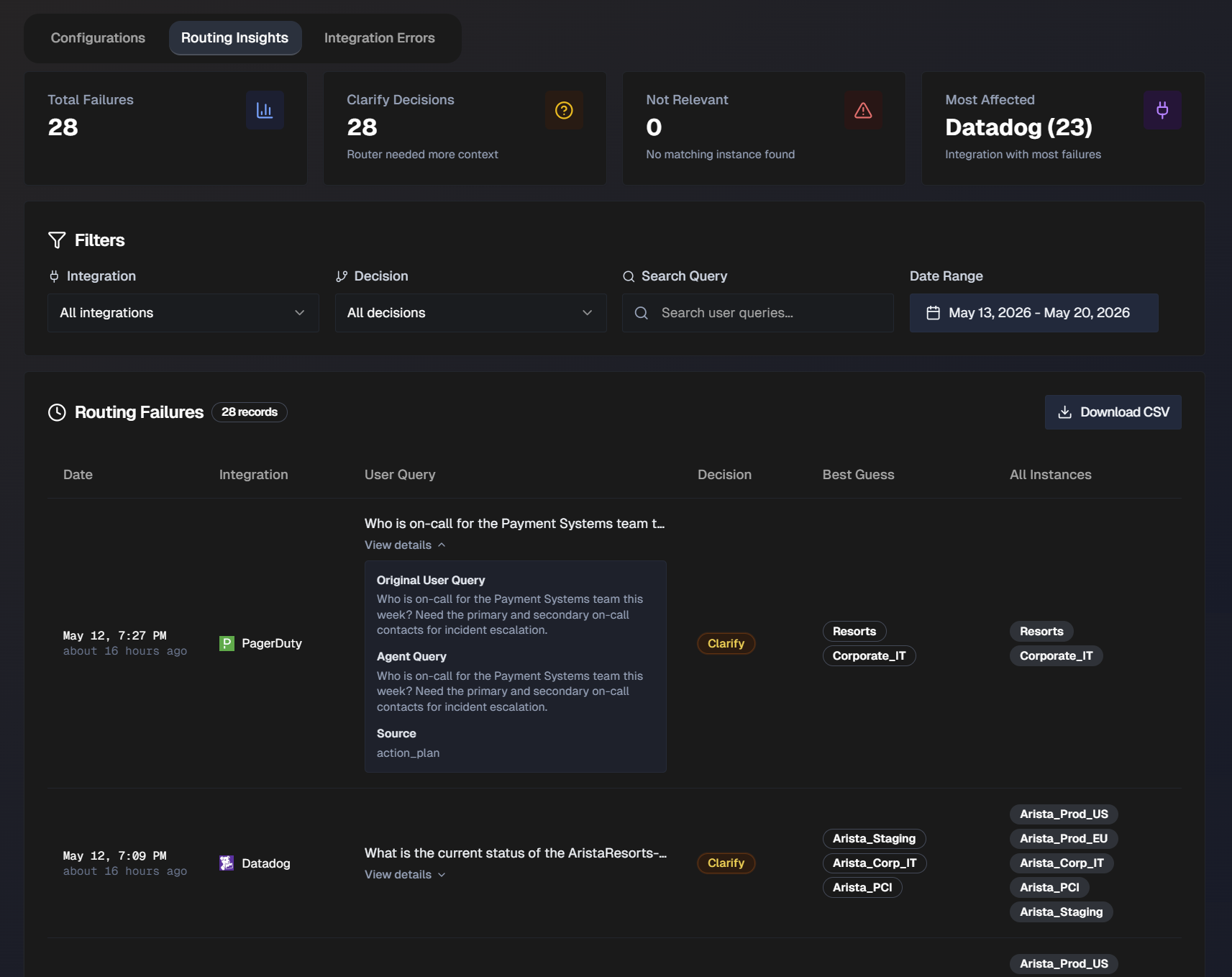
At the top of the page, statistics about your organization's routing failures are displayed. The following information is available:
Total number of failures
Clarify decisions (Router needed additional context)
Not relevant (No matching instance found)
Most affected (Integration with the most failures)
The full list of routing failures appears at the bottom of the page. Filter the list by Integration, Decision (Clarify or Not Relevant), or Date Range. Or, use the Search Query bar to search for a specific user query.
The following information about each routing failure is available in the list:
Failure date
Integration
User Query
Decision
Best Guess (Biggy's best guess for which instance to route the request to)
All Instances
Click View Details to see the full User Query, Agent Query, and Source of the query.
Integration Errors
Use the Integration Errors tab to track current issues with your integrations.
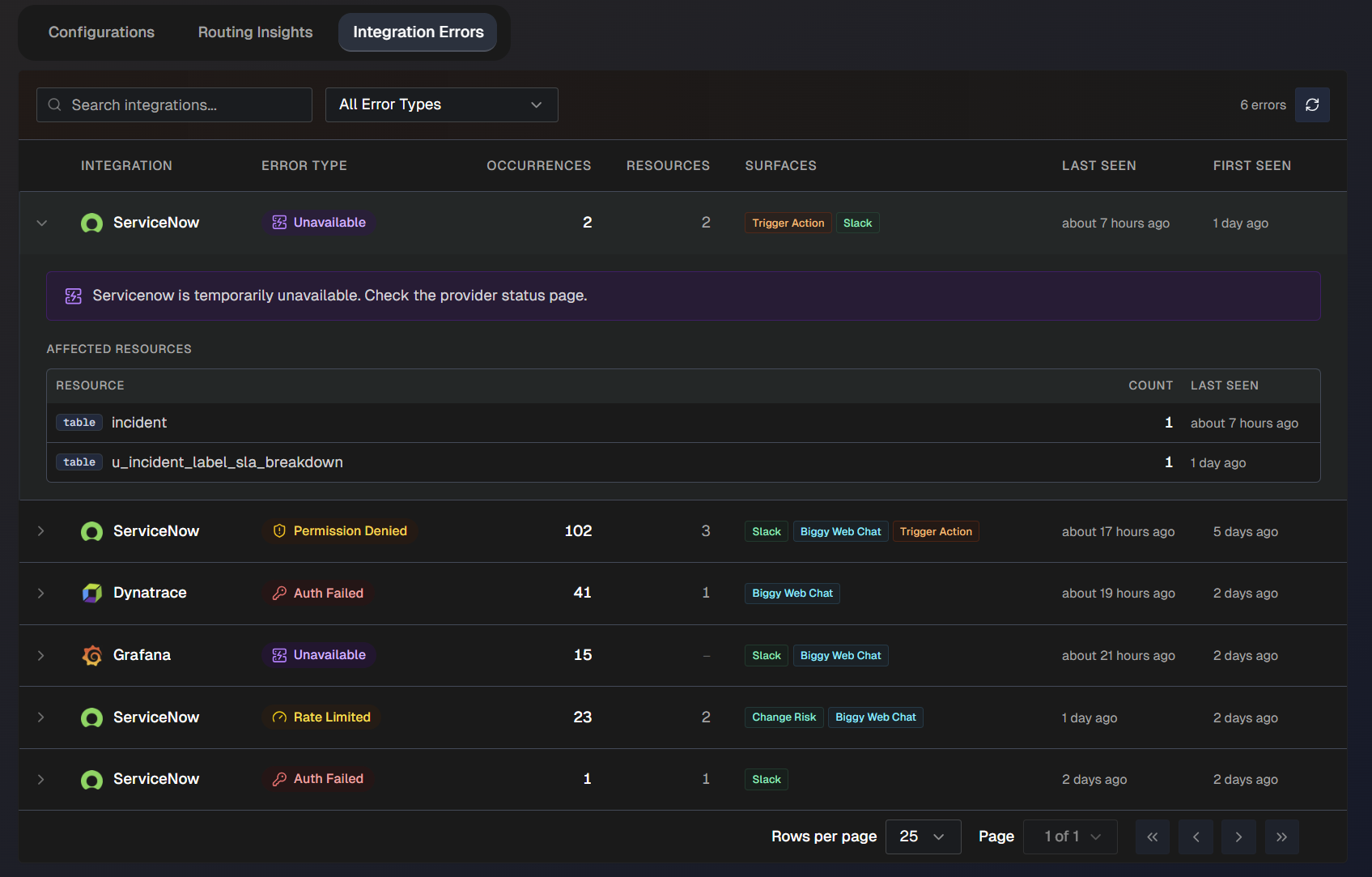
Use the search bar to find a specific integration in the list. Or, filter the list by error type. The following error types are possible:
Auth failed
Permission denied
Rate limited
Unavailable
Unreachable
Setup required
The following information about each integration failure is available:
Integration name
Error type
Number of occurrences
Resources affected
Surfaces (where the error occurred)
When the error was last seen
When the error was first seen
Click any integration failure in the list to view additional information about the error.
Core BigPanda Integration
Use the Core BigPanda section to integrate AI Incident Assistant with the BigPanda platform, allowing you to access BigPanda data in real-time. This enables Biggy to notify you when an incident occurs, helping to speed up incident management and resolution.
BigPanda incident retrieval
When you ask Biggy to search for, count, or retrieve incidents from BigPanda, it defaults to incidents in the active folder only. If specified in the query, Biggy can also return or count incidents from the following folders:
Shared
Snoozed
Resolved
Unhandled
Maintenance
Biggy is not currently able to search or retrieve historical incident data from Unified Analytics
To set up the BigPanda integration within the AI Incident Assistant Web App, go to Configuration > Core BigPanda.
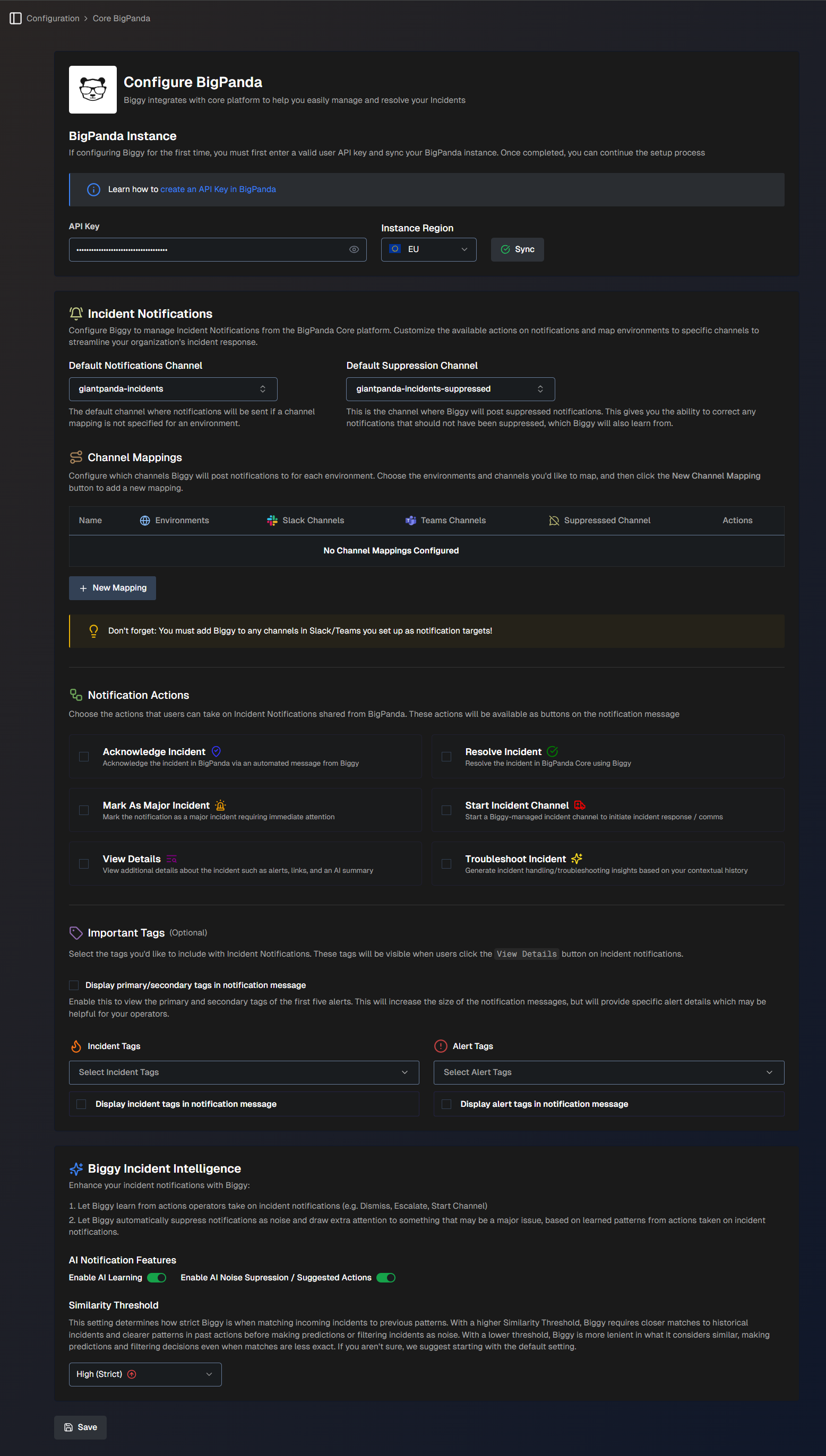
The Configure BigPanda page has several sections that allow you to connect with the BigPanda core platform, customize notification channels and tag settings, and leverage Biggy's AI capabilities to filter and prioritize incidents.
BigPanda Instance
The BigPanda Instance section allows you to connect Biggy to the BigPanda core platform.
Populate the following fields:
Field | Description |
|---|---|
API Key | Enter your BigPanda API Key. Ensure that the user account associated with the API key has admin permissions. |
Instance Region | Select the region of your BigPanda instance. (US or EU) |
BigPanda administrator
If you do not have a BigPanda API key or are unsure of your instance region, contact your BigPanda administrator.
Incident Notifications
The Incident Notifications tab allows you to customize the available notification actions and map environments to specific channels. This helps you streamline your organization's incident response.
Populate the following fields:
Field | Description |
|---|---|
Default Notifications Channel | Select a channel where Biggy will post notifications in the event of an incident. If a channel mapping is not specified for an environment, this field is used as the default. |
Default Suppression Channel | Select a channel where Biggy will post suppressed incident notifications. If a suppressed notification channel is not specified for an environment, this field is used as the default. This gives you the ability to correct any notifications which should not have been suppressed. Biggy will learn from these corrections. |
Workflow (Optional) | Select a Workflow to be used for every new incident notification. The workflow output will be shared in the thread of the incident notification message. |
Channel Mappings
The Channel Mappings section lets you configure which channels Biggy will post notifications to for each environment.
Inviting Biggy to a channel
You must add Biggy to any channels in Slack or Teams that you set up as notification targets. See the Manage Incidents with Biggy documentation for information on how to add Biggy to a channel.
To set up a channel mapping:
Click the + New Mapping button.
Populate the following fields:
Field
Description
Name
Enter a descriptive name for the channel mapping.
BigPanda Environments
Select one or more BigPanda environments associated with this mapping.
Slack or Teams Channels
Select one or more Slack or Teams channels where notifications will be posted.
Suppressed Notifications Channel
Select a channel where Biggy will post suppressed incident notifications for the selected environment(s).
This gives you the ability to correct any notifications which should not have been suppressed. Biggy will learn from these corrections.
Workflows (Optional)
Select the Channel Hawk workflow(s) to be executed for every new incident notification of this mapping.
For example, you can add a workflow to automatically troubleshoot each new incident.
The workflow output will be shared in the thread of the incident notification message.
Click Save.
Notification Actions
Choose the actions that users can take on Incident Notifications shared from BigPanda. These actions will be available as buttons in the notification message.
The following actions are available:
Action | Description |
|---|---|
Acknowledge Incident | Acknowledge the incident in BigPanda via an automated message from Biggy. This will result in a message posted in the BigPanda activity feed. |
Mark As Major Incident | Mark the notification as a major incident requiring immediate attention. This will result in a message posted in the BigPanda activity feed. |
Start Incident Channel | Start a Biggy-managed incident channel to initiate incident response and communication. |
Troubleshoot Incident | Generate incident troubleshooting insights based on your contextual history. |
Resolve Incident | Resolve the incident in the BigPanda platform. |
Start MIM | Start a Major Incident Management workflow from the notification. |
View Details | View additional details about the incident such as alerts, links, and an AI summary. |
Important Tags (Optional)
The Important Tags section allows you to select the tags you'd like to include with incident notifications. These tags will be visible when users click the View Details button on incident notifications.
Populate the following fields:
Field | Description |
|---|---|
Display primary/secondary tags in notification message | Enable this option to display the primary and secondary tags of the first five alerts in the incident notification. This will increase the size of the notification messages but provide specific alert details that may be helpful for your operators. |
Incident Tags | Select one or more incident tags to include in the incident notification. Click Display incident tags in notification message to enable this option. |
Alert Tags | Select one or more alert tags to include in the incident notification. Click Display alert tags in notification message to enable this option. |
Biggy Notification Intelligence
Enhance incident notifications by letting Biggy learn from operator actions. This allows Biggy to automatically suppress noise and highlight major issues, based on learned patterns.
The following options are available:
Field | Description |
|---|---|
AI Notification Features | AI Notification Features enhance your notifications from Biggy. The following options are available: Enable AI Learning - Click the toggle to allow Biggy to learn from actions operators take on incidents such as dismissing, escalating, starting channels, etc. Enable AI Noise Suppression / Suggested Actions - Click the toggle to allow Biggy to automatically suppress noisy notifications or draw extra attention to something that may be a major issue based on learned actions. |
Similarity Threshold | Determines how strict Biggy is when matching incoming incidents to previous patterns. With a High similarity threshold, Biggy requires closer matches to historical incidents and clearer patterns in past actions before making predictions or filtering incidents as noise. With a Low threshold, Biggy is more lenient in what it considers similar, making predictions and filtering decisions even when matches are less exact. If you aren't sure which to select, we suggest starting with the Medium (default) setting. |
BigPanda Agent
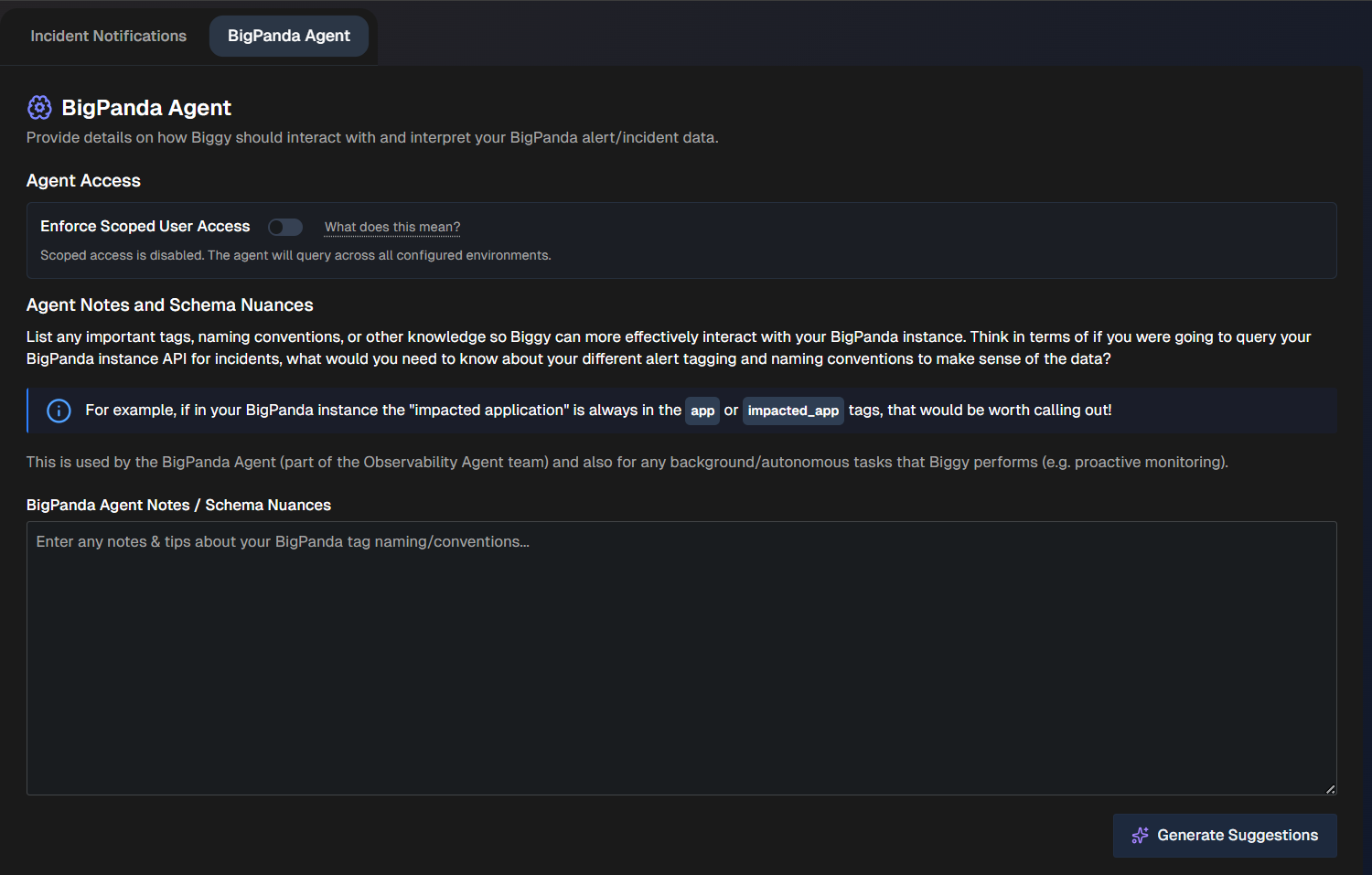
The BigPanda Agent tab allows you to provide details on how Biggy should interpret your BigPanda alert and incident data.
Agent Access
In the Agent Access section, determine how Biggy will handle user access.
When Enable Scoped User Access is enabled, Biggy will respect the requesting user's BigPanda Roles and retrieve data only from environments they are authorized to view.
When this option is disabled, Biggy will query across all BigPanda environments.
Account mapping
Biggy maps user accounts to their corresponding BigPanda account based on the associated email address.
Agent Notes and Schema Nuances
In the Agent Notes and Schema Nuances section, list any important tags, naming conventions, or other knowledge that helps Biggy more effectively interact with your BigPanda instance. This is used by the BigPanda Agent (part of the Observability Agent team) and also for any background or autonomous tasks that Biggy performs, such as proactive monitoring.
Tagging and naming conventions
Consider what you need to query your BigPanda instance for incidents. Enter what you would need to know about your alert tagging and naming conventions.
For example, if “impacted application” is always in the app or impacted_app tags, you can mention this here.
To get assistance adding the schema nuances, click the Generate Suggestions button. This allows the LLM to scan your BigPanda tags to infer usage and importance.